Step 1: Locate Your Coupon in the App (Mobile App or Web App)
Step 2: Testing Location Based Coupons
Step 3: Test User Information & Password Fields
Step 4: Test the In-Person Redemption Flow
Step 5: Confirm the Redemption Appears in Your Online Report
Testing your coupons is an important step before launching them publicly. This guide walks you through verifying that coupons appear correctly in the app, display the correct information, redeem properly in person, and track accurately in your reporting dashboard.
If you’re new to coupons, start with these articles:
Coupons Overview – what coupons are and how visitors use them
Implementing Coupons – step-by-step setup instructions in the CMS
Get Started: Testing Coupons
Step 1: Locate Your Coupon in the App (Mobile App or Web App)
Open the Driftscape application (mobile or browser based) and navigate to the POI that contains your coupon. Once you’ve found and opened the specific POI you should see a “get coupon” button underneath the POI description.
If you can’t find your POI or are having trouble viewing your content, see How to Add a Place and ensure you’ve followed the steps correctly. Your POI should be public to users in order to find it in the app.
Once you’ve located your POI, select the “Get Coupon” button, which should be located underneath the description of your POI. 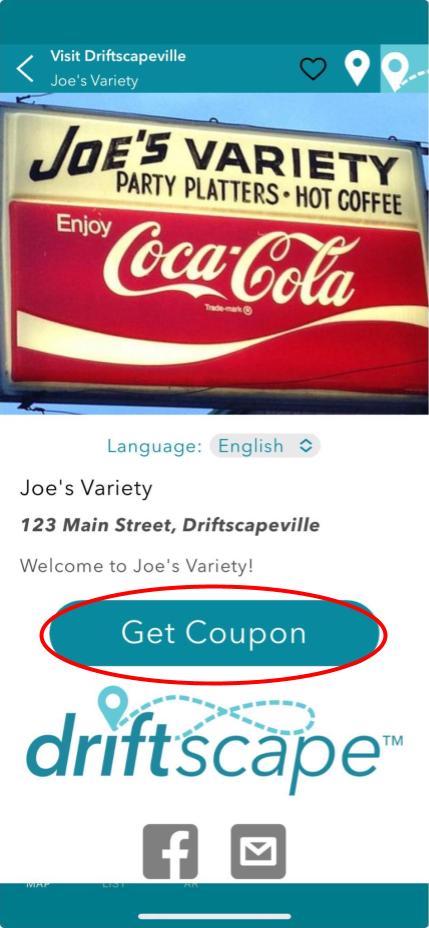
If the “Get Coupon” button is not present, see Implementing Coupons and ensure you’ve followed the steps properly to publish the coupon on this POI.
Step 2: Testing Location Based Coupons
If your coupon requires users to be on location (by default this is turned on when setting up a coupon) and you are not within the required range, you should receive an error message.
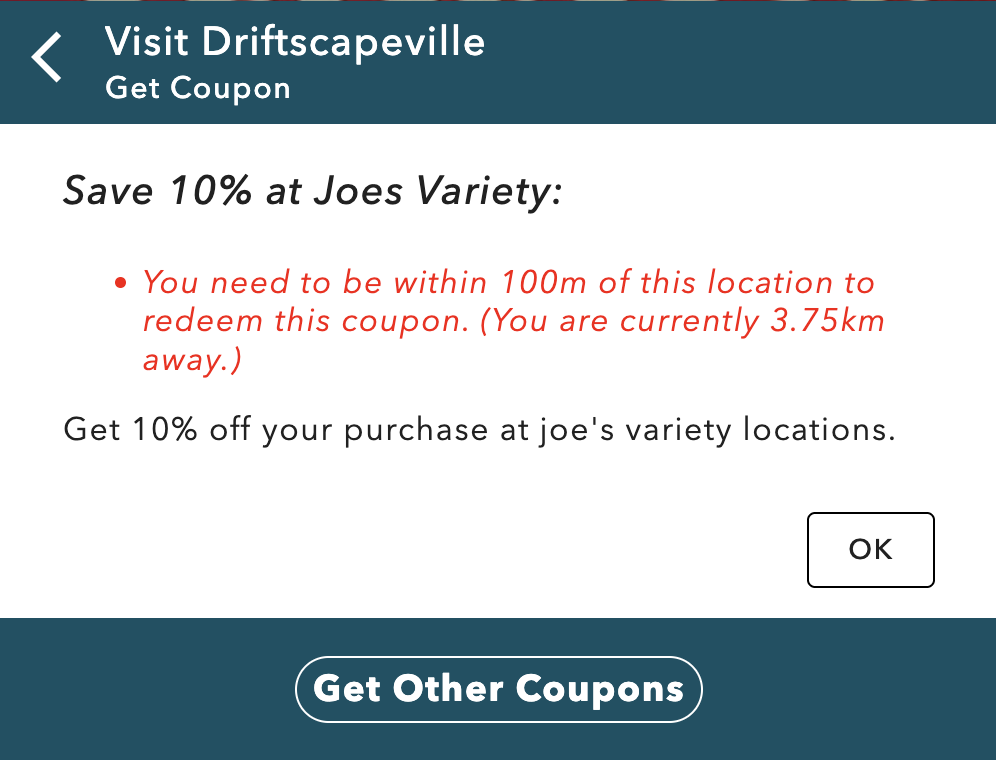
If you are not within the required range and do not receive an error message, see Implementing Coupons and double check you’ve activated “Redeemable Only When on Location” while setting up your coupon.
If your coupon does not require users to be on location, you should not receive this error message. If you do, check that you have deselected “redeemable only when on location” for this coupon.
After ensuring you receive an error message outside of the radius, travel to the location of the POI to continue testing.
Once at the location of the POI, click the “Get Coupon” button again and ensure you do not receive the error message. If you are still receiving the error message, ensure your Location Services are enabled while using the app. See How to Enable Location Permissions for my Mobile Browser to check that they are enabled for Driftscape and the browser you are using the web app in.
Step 3: Test User Information & Password Fields
Whether you are on location, or your coupon does not require users to be on location, it’s important to test all passwords and user fields your coupon requires. The following fields may be required depending on the setup of your coupon,,,
Password - an alphanumerical code setup by you
Name - Name of the user claiming the coupon
Email - Email of the user claiming the coupon
Address - Address of the user claiming the coupon
Phone - Phone number of the user claiming the coupon
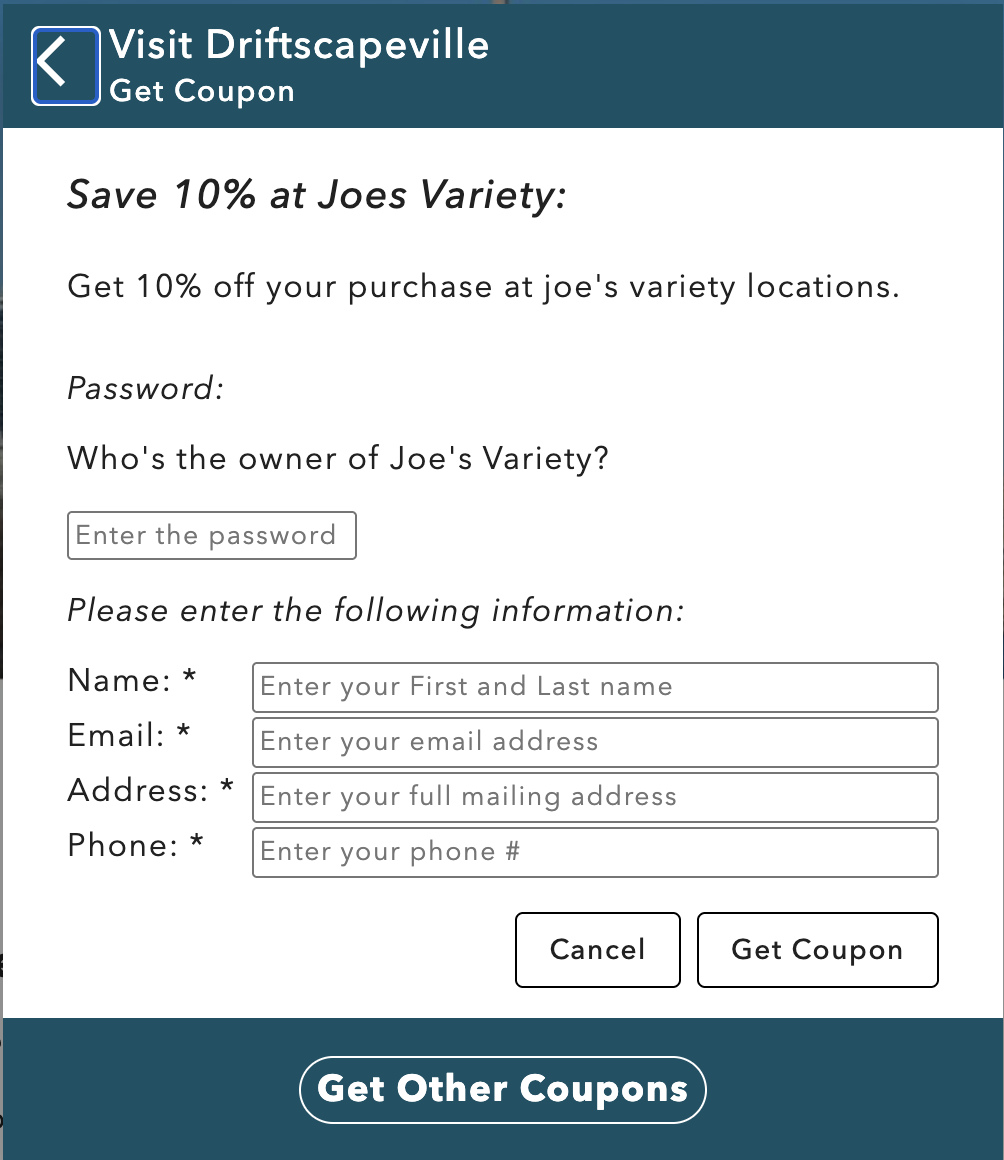
Ensure all of the fields you have selected to be required appear in the redemption form. If fields are missing, go back to your coupon setup in the CMS and check they’ve been marked as required.
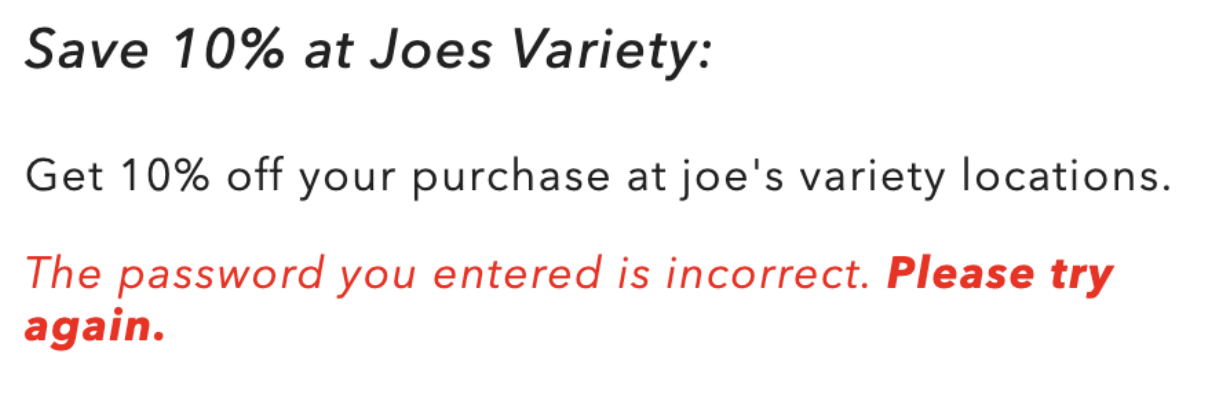
Enter all the required fields and select “Get Coupon”. If your coupon is password protected, ensure that using the correct password grants you access to the coupon. Then test using an incorrect password, you should see an error message.
Step 4: Test the In-Person Redemption Flow
Once the coupon has been successfully generated using the Get Coupon button, you will see the final redemption screen. This is the screen visitors will present to the staff member at the business.
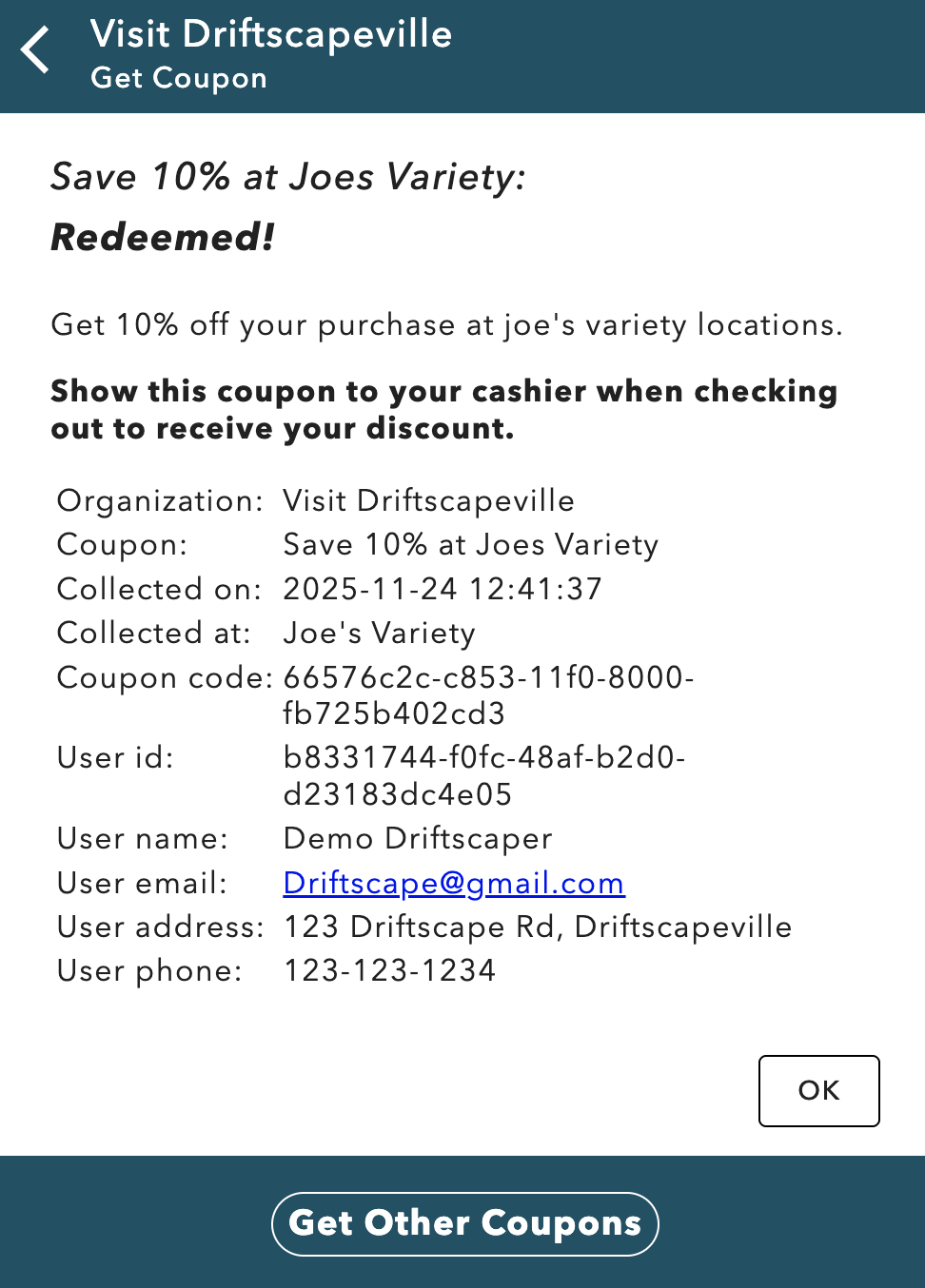
Because Driftscape does not integrate with any business POS systems, the business must apply the discount manually. Before launching publicly, confirm that businesses understand:
How to manually apply the discount in their POS
Which items or services the offer applies to
Any limits or conditions you’ve included in the coupon description
To simulate an in-person redemption:
Pretend you are the visitor at the business
Show the redemption screen to a staff member (or simulate the role yourself)
Confirm that the instructions you wrote in the CMS are clear and accurate
If anything appears unclear or could be misinterpreted by staff, return to the CMS and update your Redemption Instructions field.
Step 5: Confirm the Redemption Appears in Your Online Report
Once the coupon has been redeemed online, navigate to the Driftscape CMS in a desktop browser & log into your account.
Once you’ve logged into your account, select the Points/Rewards/Coupons menu beside your organization's content.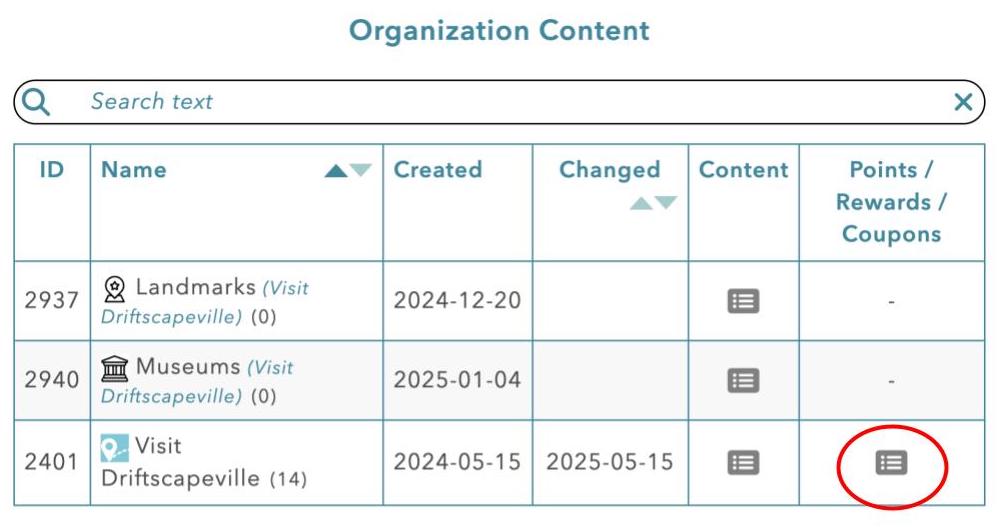
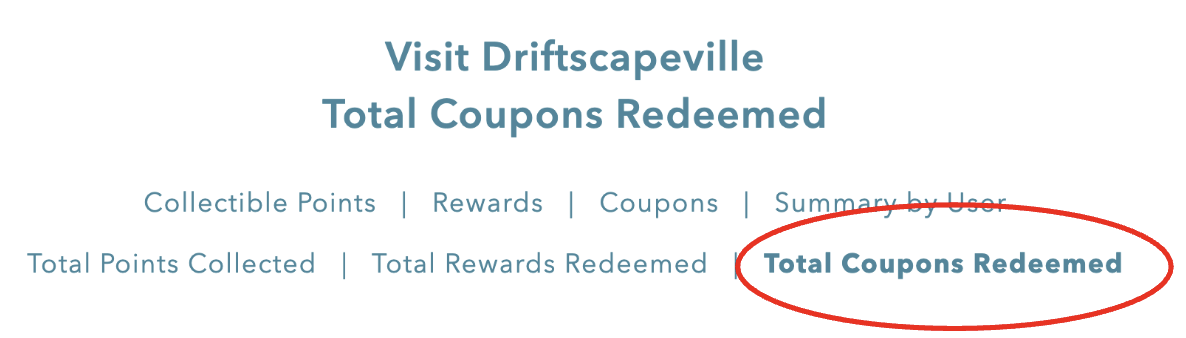
Then select “Total Coupons Redeemed” to view all your coupon redemptions to date.
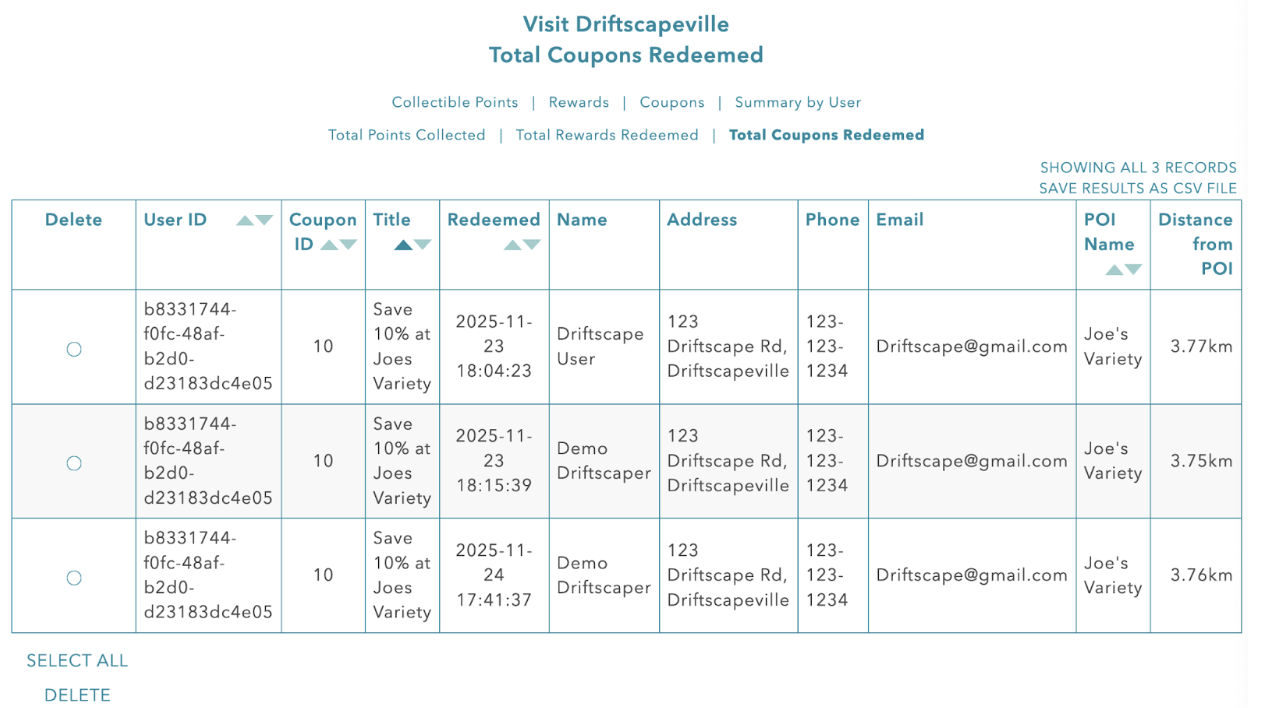
You should see all the coupons you’ve tested redemptions for, along with the user data you input while testing. If anything is displaying inaccurately, try testing another coupon to ensure there were no mistakes made upon redemption. If the data is still inaccurate, contact support to ensure the data is being tracked.
Step 6: Clear Test Entries
Before launching your campaign to the public, it’s important to clear your test entries. This ensure you receive accurate analytics during the coupon campaign. Along with keeping your coupon redemption limits, if applicable, accurate.
To clear your test entries, follow step 5 until you see your Total Coupons Redeemed page. Once you’re on the Total Coupons Redeemed page, scroll to the bottom of the table to find the “select all” and “delete” buttons.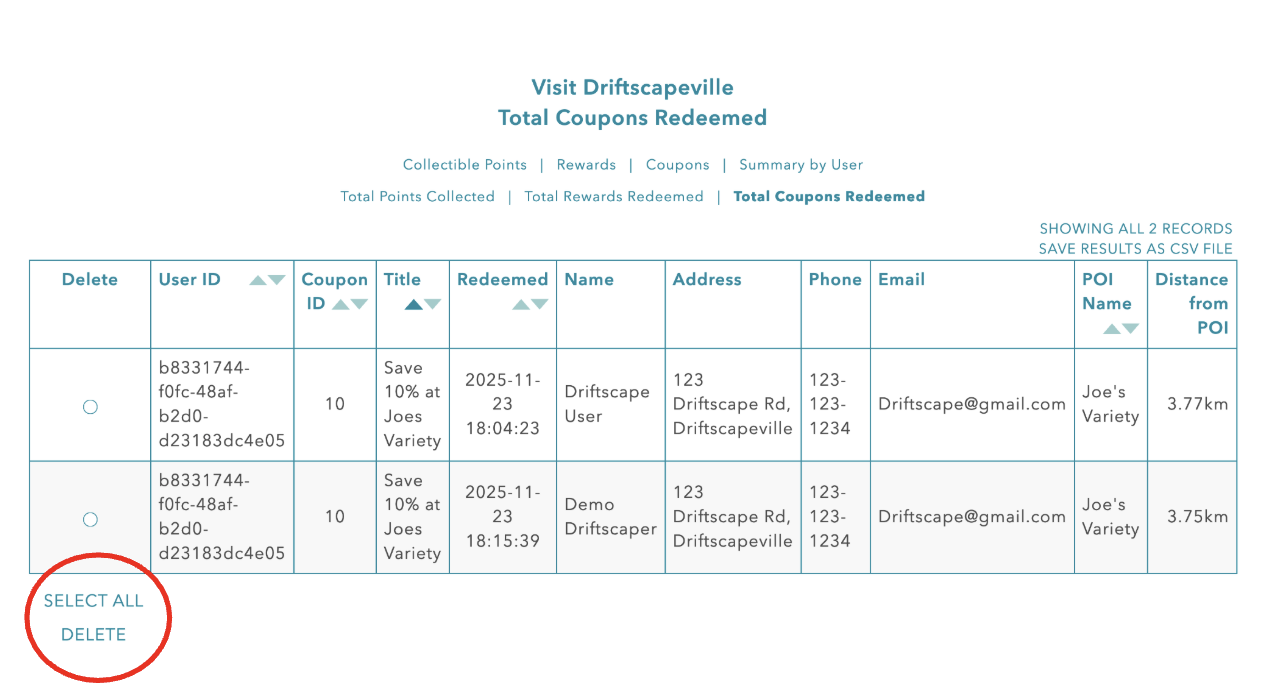
If you only have test entries and no public redemptions, use the “select all” button. Then click delete.
If you only wish to delete certain entries, then you need to select every entry you want to delete using the delete bar on the left hand side of the table.
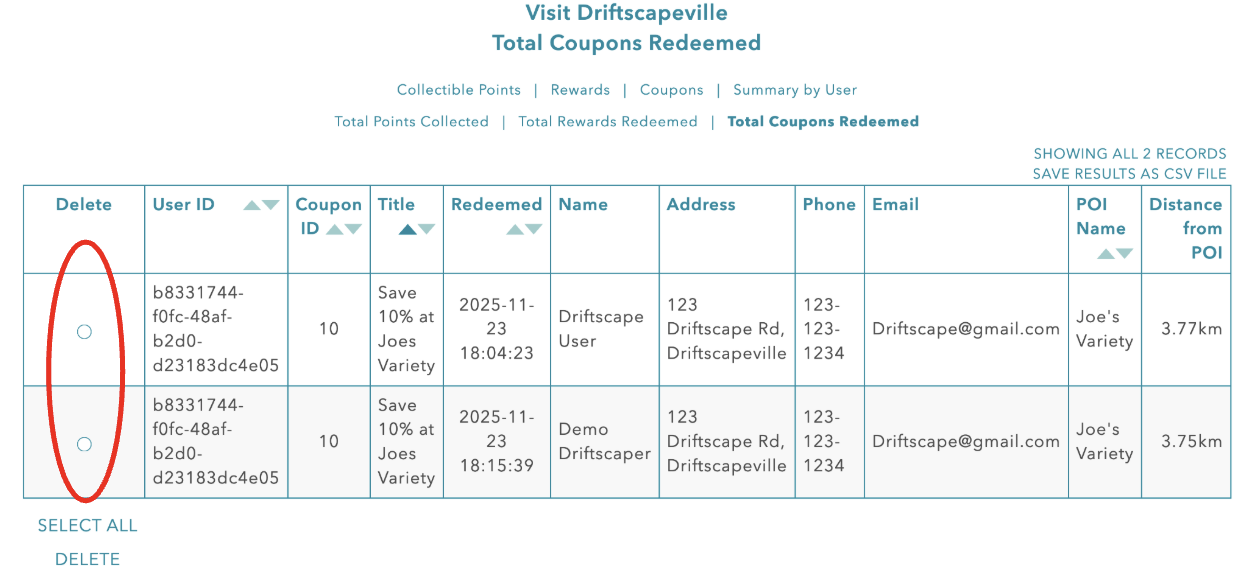 Once all the entries you want to delete have been selected, use the “delete” button at the bottom of the table.
Ready to Launch Checklist
Your coupon is fully tested and ready for visitors once you’ve confirmed that:
Coupons appear correctly inside the POI
Location-based restrictions behave as expected
Required user fields and passwords work correctly
Staff know how to apply the discount
Redemptions appear accurately in the redemptions dashboard
Test entries have been cleared
With these steps complete, your coupon system is ready to support public campaigns, local businesses and visitor engagement.
Related Articles
Was this article helpful?
That’s Great!
Thank you for your feedback
Sorry! We couldn't be helpful
Thank you for your feedback
Feedback sent
We appreciate your effort and will try to fix the article