Examples of Use Cases for Coupons
Use Case 1: Boosting Foot Traffic for Local Businesses
Use Case 2: Encouraging Multi-Stop Exploration
Use Case 3: Seasonal or Event-Based Campaigns
Step 1: Navigate to the coupon menu
Step 2: Add Your Coupon Information
Step 3: Add Your Coupon to a POI
Step 4: Add Your Coupon to All POIs (Optional)
Step 6: Reviewing your Coupon Redemptions
Coupons in Driftscape allow organizations to create digital offers—such as discounts, free items, or promotional specials—that visitors can redeem directly within a POI. This guide walks you through creating coupons in the CMS, linking them to POIs, and reviewing redemption activity. Coupons provide a simple way to support local businesses, drive exploration, and run campaigns without needing POS integrations or printed vouchers.
What is a Coupon?
A coupon is a digital incentive displayed inside a POI in the Driftscape mobile app and web app. Organizations can create coupons directly in the CMS once the feature is enabled on their plan. Visitors view and redeem coupons in person, and staff verify redemption by tapping the “Merchant Verification” button on the visitor’s screen. This keeps the process simple, paperless, and fully trackable through your redemption analytics.
Examples of Use Cases for Coupons
Use Case 1: Boosting Foot Traffic for Local Businesses
Cafés, restaurants, and retail shops can offer promotions such as “10% Off Any Purchase” or “Free Dessert with Entrée.” Visitors browsing nearby POIs can immediately see the coupon and visit the business to redeem it.
Use Case 2: Encouraging Multi-Stop Exploration
Organizations can attach coupons to POIs in a route or themed campaign—such as food trails, art walks, or shopping events—to encourage visitors to make multiple stops.
Use Case 3: Seasonal or Event-Based Campaigns
Coupons are useful for temporary promotions such as holiday events, summer passes, and festival specials. For example, “Winter Warm-Up: Free Beverage Upgrade” can appear at participating POIs throughout the season.
Get Started: Adding a Coupon
Step 1: Navigate to the coupon menu
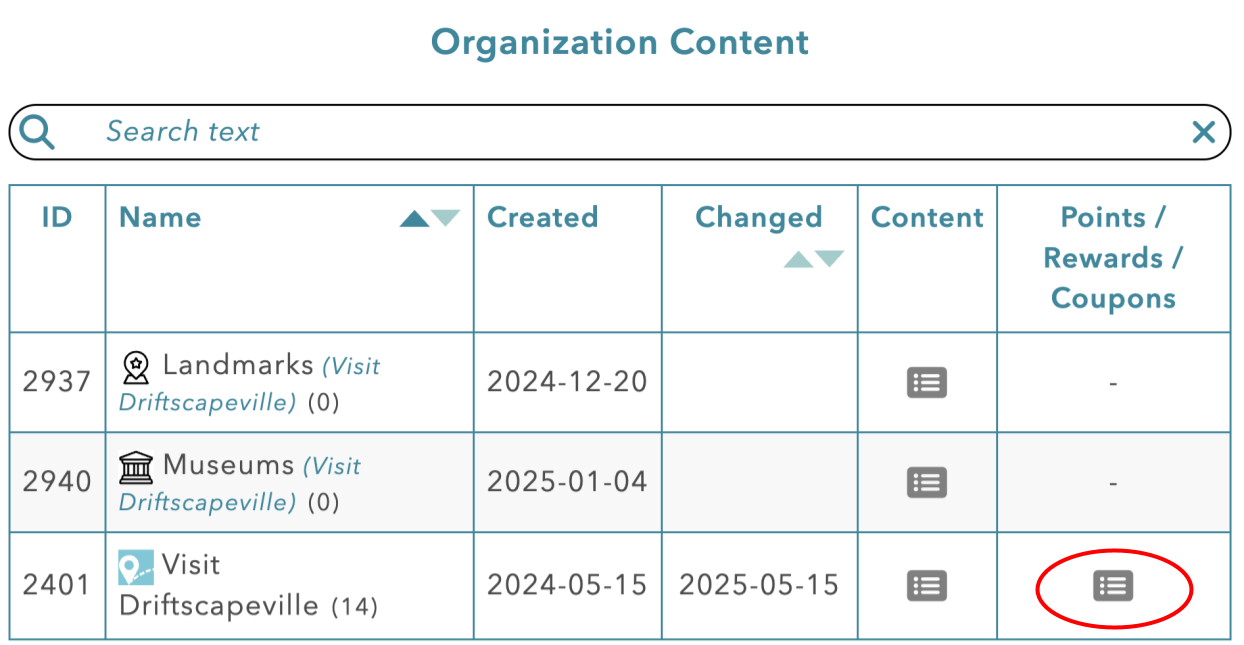
Login to the Driftscape Content Management System (CMS) and navigate to Org Content. Then select the Points/Rewards/Coupons menu beside your organization.
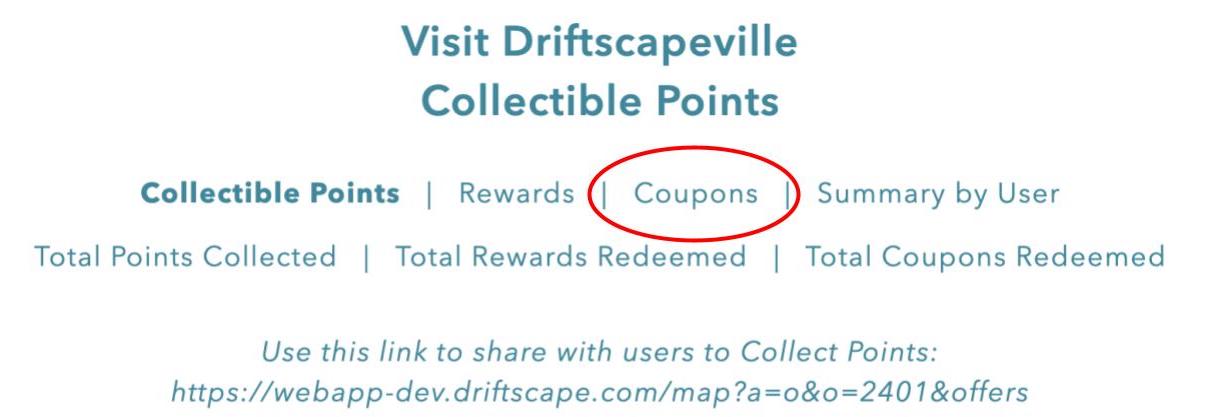
In the header of this page select “Coupons”
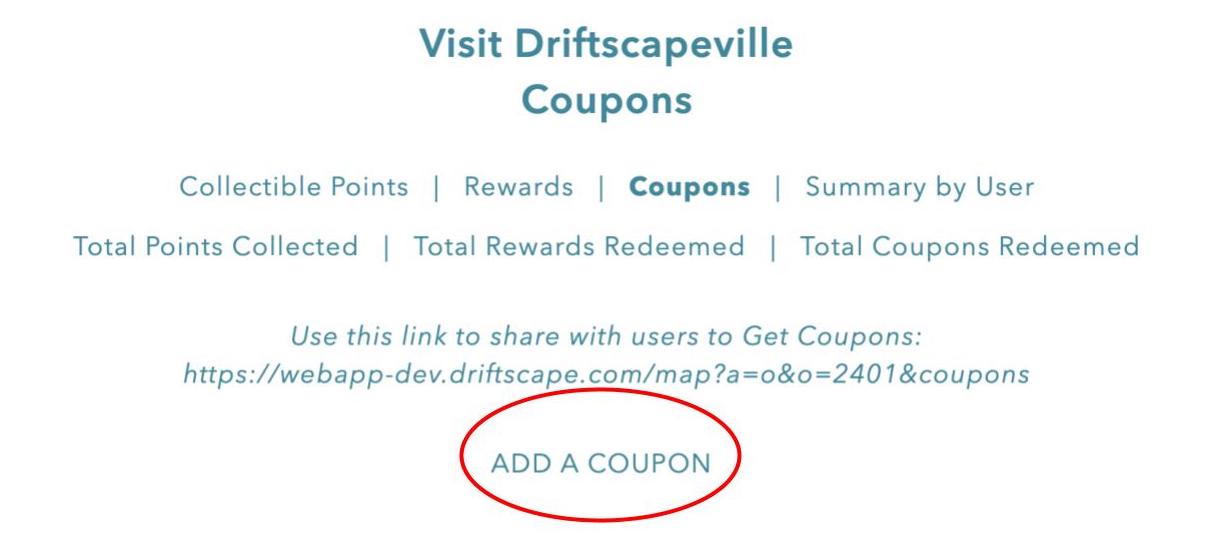
Then select “add a coupon” underneath the header of the page
Step 2: Add Your Coupon Information
There are three pieces of required information when adding a coupon.
Coupon Title: A brief, user-facing name for the coupon (eg. Save 10% at Joe’s Variety)
Coupon Details: A detailed explanation of the offer, shown to visitors before redemption (eg. Receive 10% off your purchase at any participating store. No minimum purchase required)
Coupon Instructions: Displayed after the visitor taps “get coupon” explains what to show the staff and how to redeem the coupon (eg. Show this screen to staff to receive your discount)
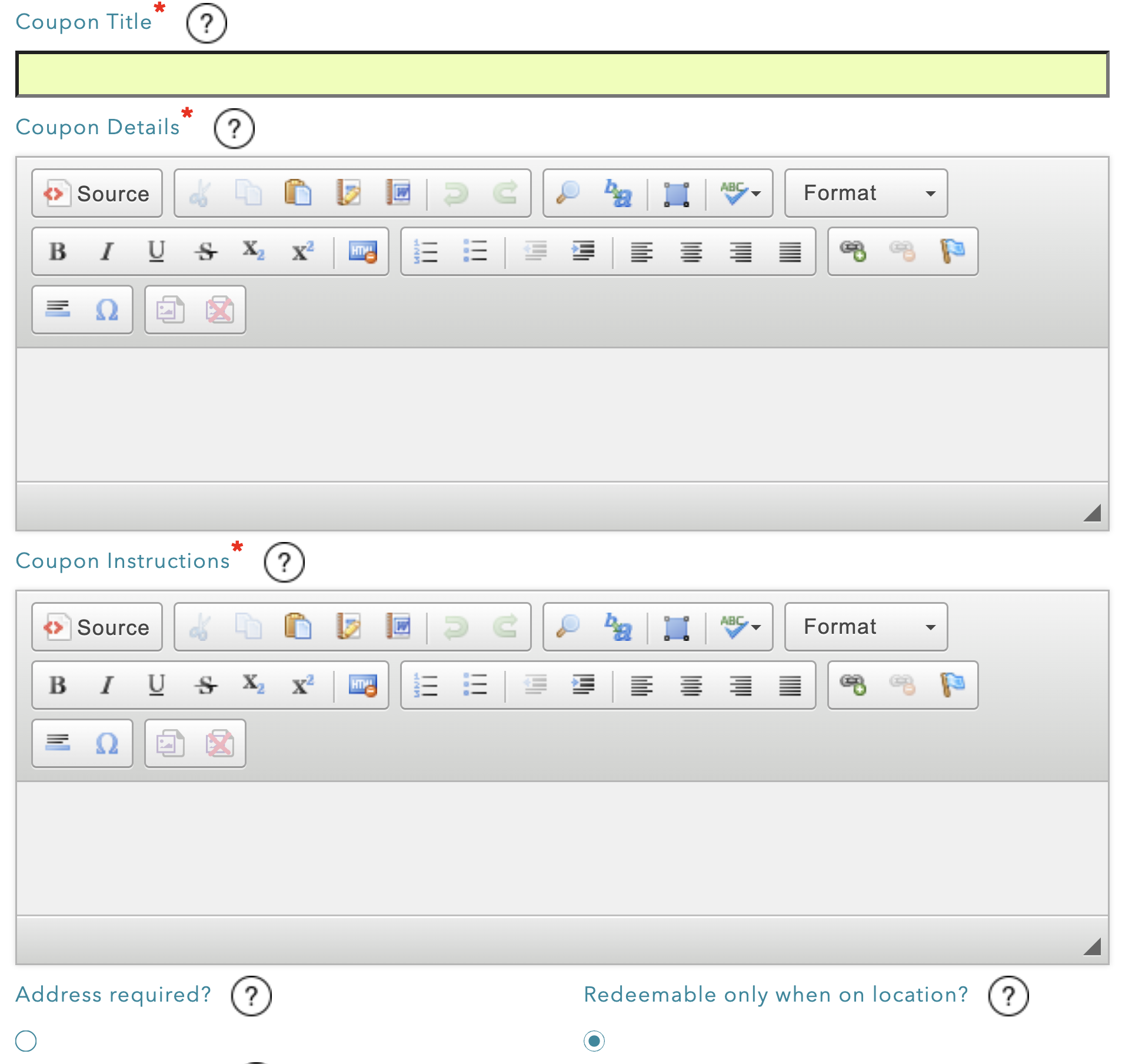
The remaining fields are optional, but have lots of benefit when customizing your coupon. Be sure to fill out any field that applies to your offer.
Address Required: If selected, users must enter their address and phone number before redeeming the coupon
Redeemable only when on location: If selected, the user must be at the POI to redeem the coupon
Maximum Distance: If the coupon is redeemable only when on location, this is the maximum distance (in metres) that a user can be from the POI to redeem.
If left blank, the default is 100 metres
Start Date: First day the coupon can be redeemed
Start Time: Enter the time of day you want the coupon to start being collectible. If left blank, the coupon will be collectible starting at midnight that day
End Date: The final day the coupon can be redeemed
End Time: Enter the time of day you want the coupon to stop being redeemable. If left blank, the coupon will stop being collectible at midnight (the beginning) of that day.
Times are based on the account's set timezone (configured when creating the account). To change your account timezone, please contact support@driftscape.com
Maximum redemptions (per users): Enter the maximum number of times that any user can redeem this coupon
If blank, there is no limit per user
Maximum Redemptions (total): Enter the number of times this coupon can be redeemed in total by all users
Expiry: Enter the number of days a user has to use this coupon after redeeming the offer in app
Password: If you wish to password protect this coupon, enter the password here
Password Prompt: Add a hint for the password, so users are able to access the coupon
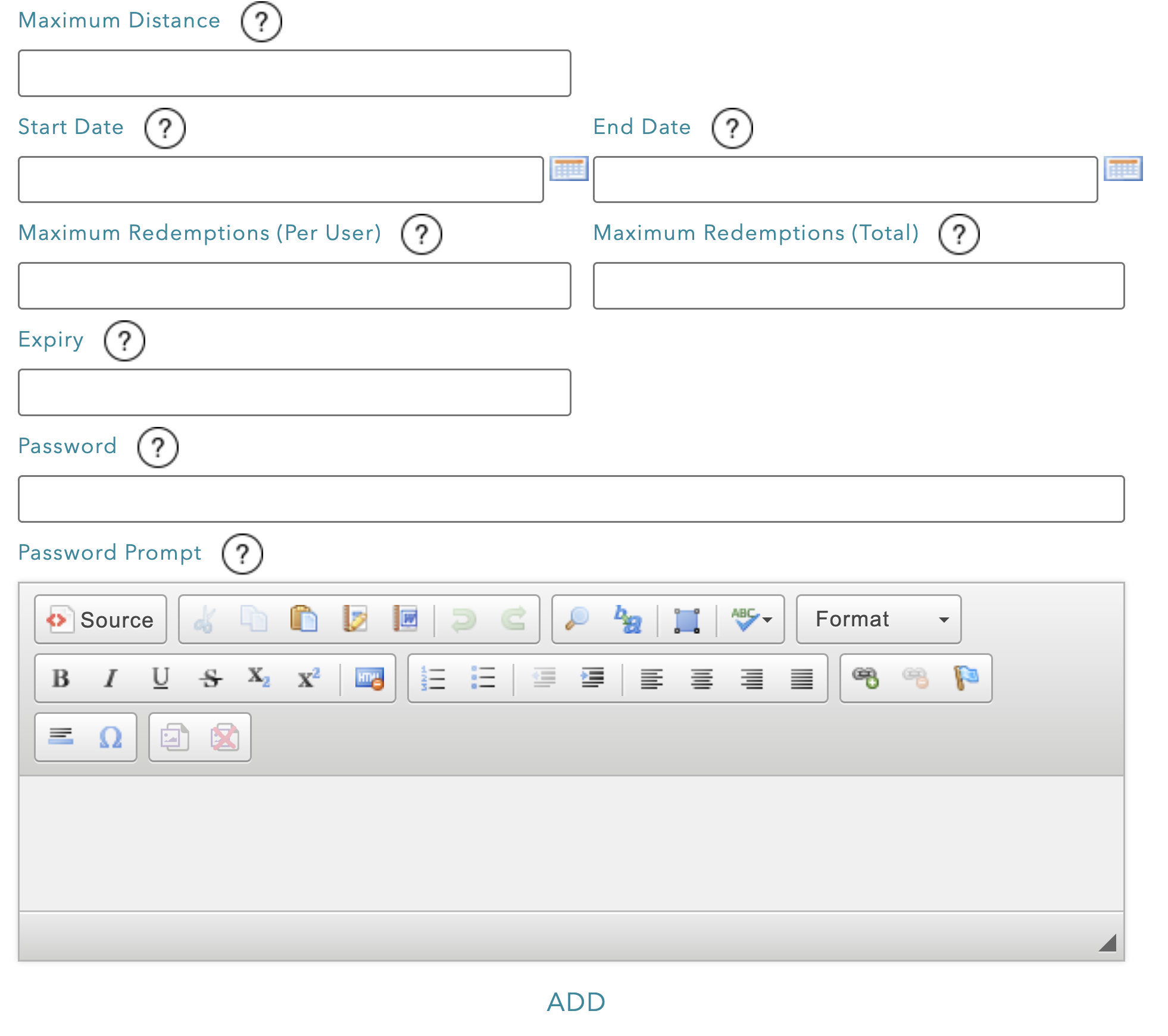
Once you’ve inputted all your required information, click “add” at the bottom of the page
Step 3: Add Your Coupon to a POI
Once your coupon is created, navigate to your organization content using the menu on the top right of the page. 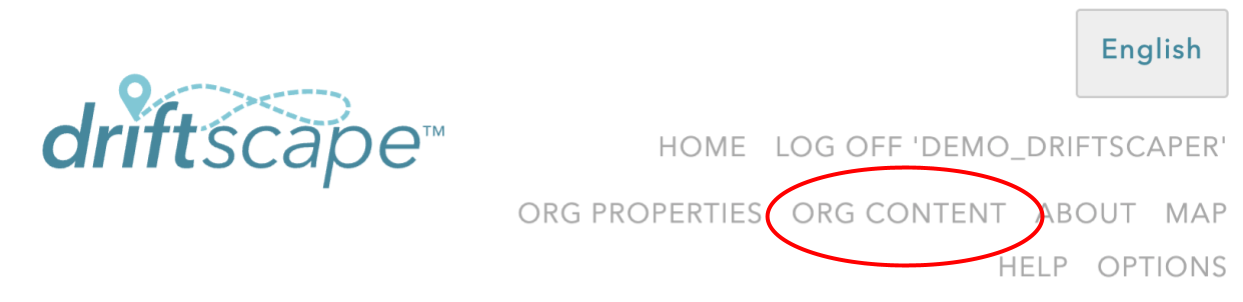
Then select the organization your desired POI is stored under & navigate to the edit button beside your desired POI and select edit.

Near the bottom of the edit page, you will find the Points & Rewards (P&R) / Coupons System menu. Under the “coupons” drop down, select the coupon you want to associate with this POI.
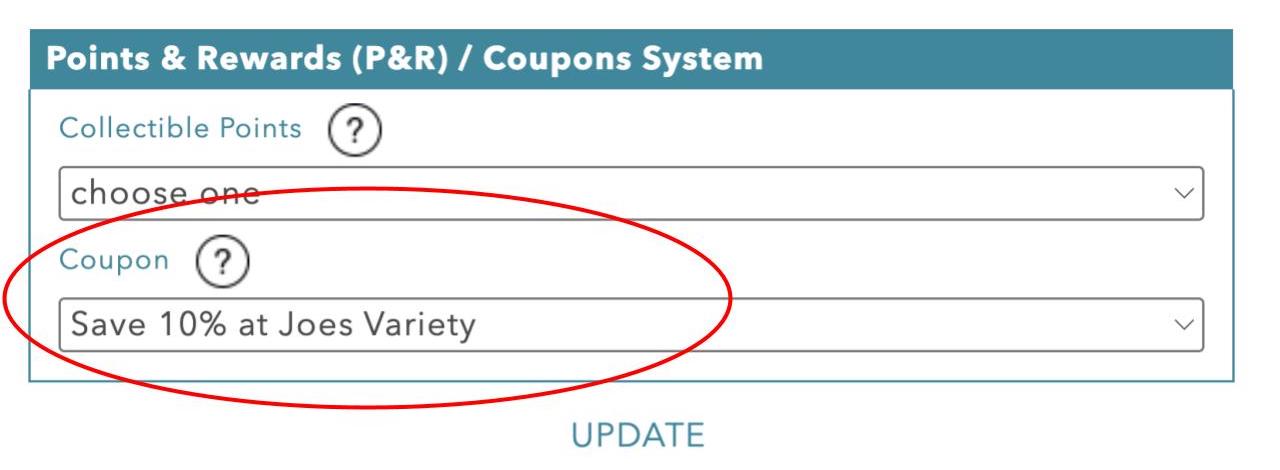 Then select update to save your POI.
Step 4: Add Your Coupon to All POIs (Optional)
Along with assigning a coupon to a single POI in the application, you can also assign a single coupon to every POI you have public. This can be done with one command, instead of updating each POI individually.
Navigate to “Org Properties” in the top menu of the Driftscape CMS
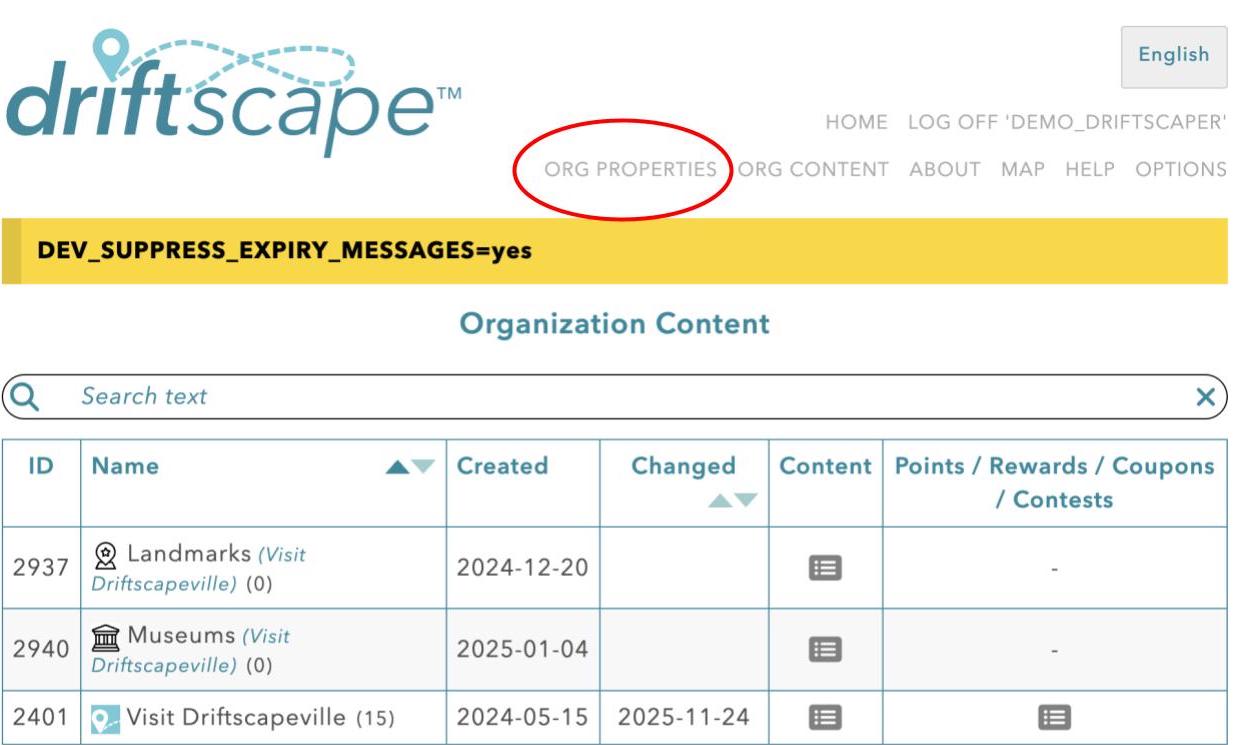
Then select the edit button beside the organization or sub organization you wish to apply your coupon to. 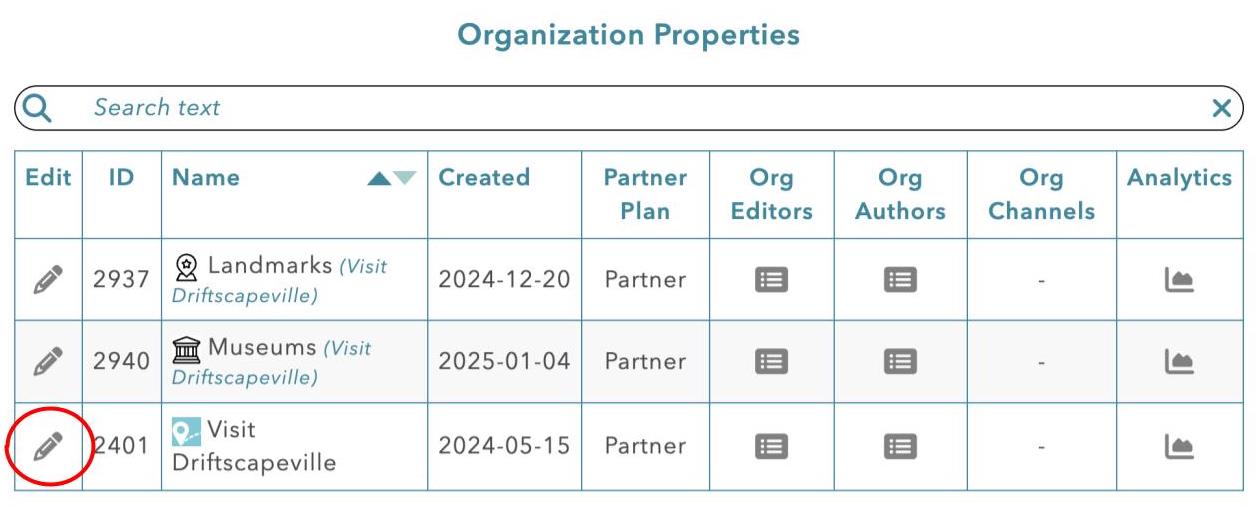
At the very bottom of this editor page, you will find a “Points and Rewards/Coupons/Contests” menu. Using the “Offer a coupon at all of your POIs” drop down, select the coupon you wish to offer at every POI.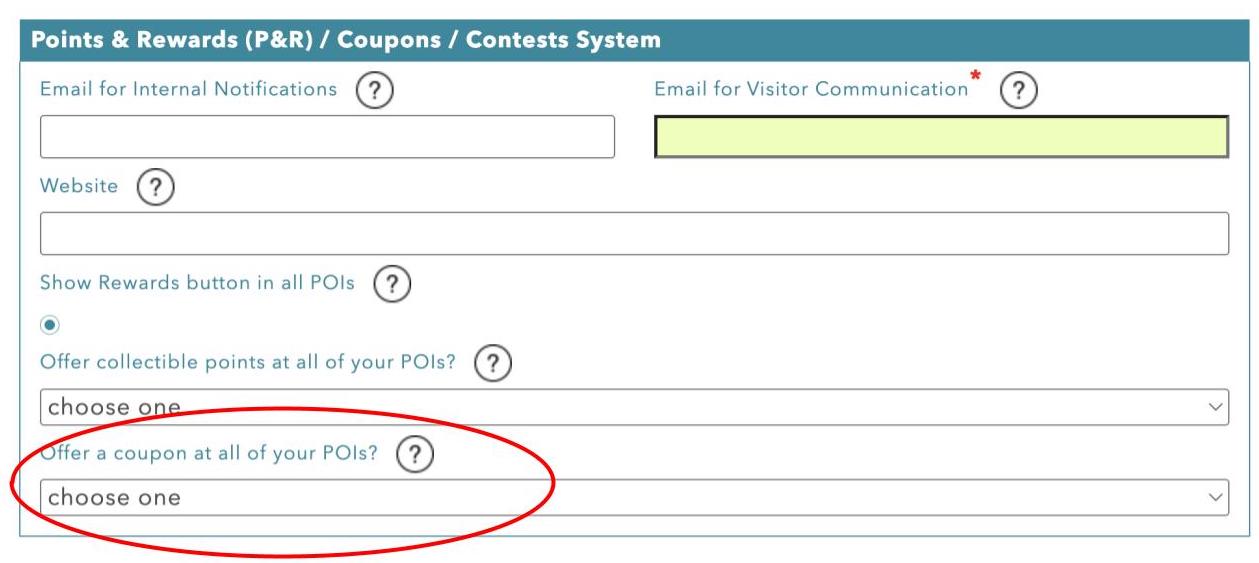
Once your coupon has been selected, click the “update” button at the bottom of the page.
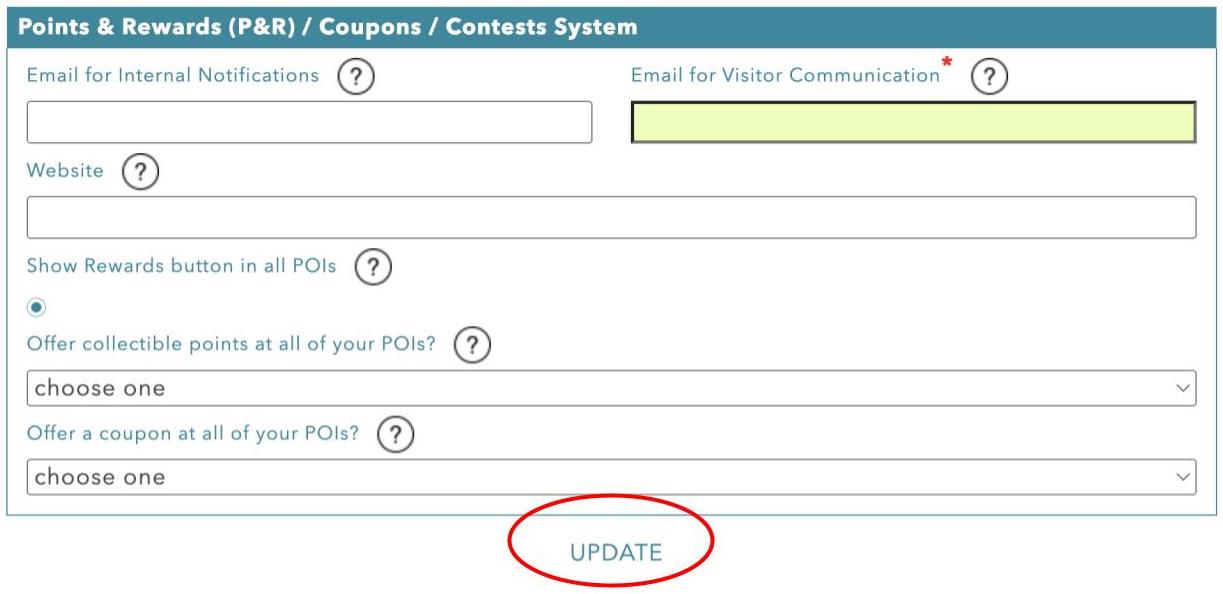
This step is only necessary if you want to display a single coupon at every POI in your organization.
Note regarding "Offer a Coupon at all of your POIs" - When a coupon is offered at the organization level and a different coupon is offered at a single POI. The POI level coupon will be used as the default and be the only redeemable coupon for that POI (you cannot have two coupons available at one POI).
Step 5: Coupon Redemptions
Once your coupons are active on your POIs, visitors will be able to open the POI in the Driftscape Mobile App or Web App and redeem the offer directly.
When a user opens a POI with a coupon associated, they will see a “get coupon” button at the bottom of the POI.
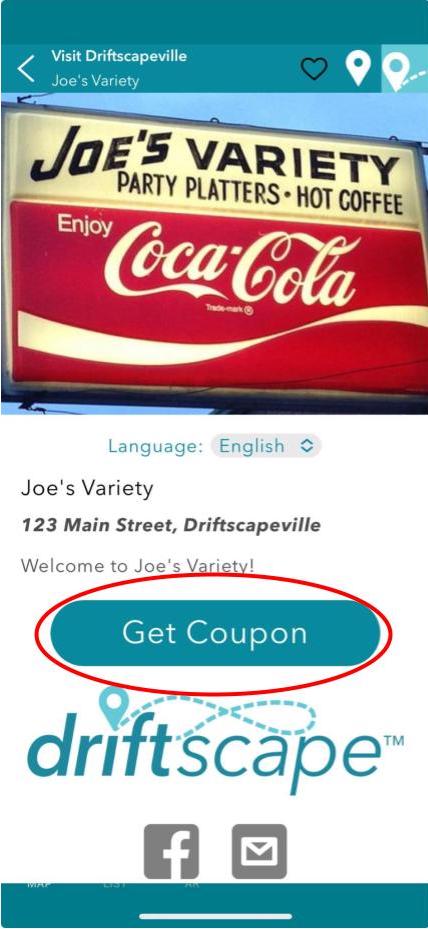
Once selected, they will be prompted to enter any information required before redeeming the coupon. Along with a button “get other coupons” which will take them to a list of all your coupons available in the app.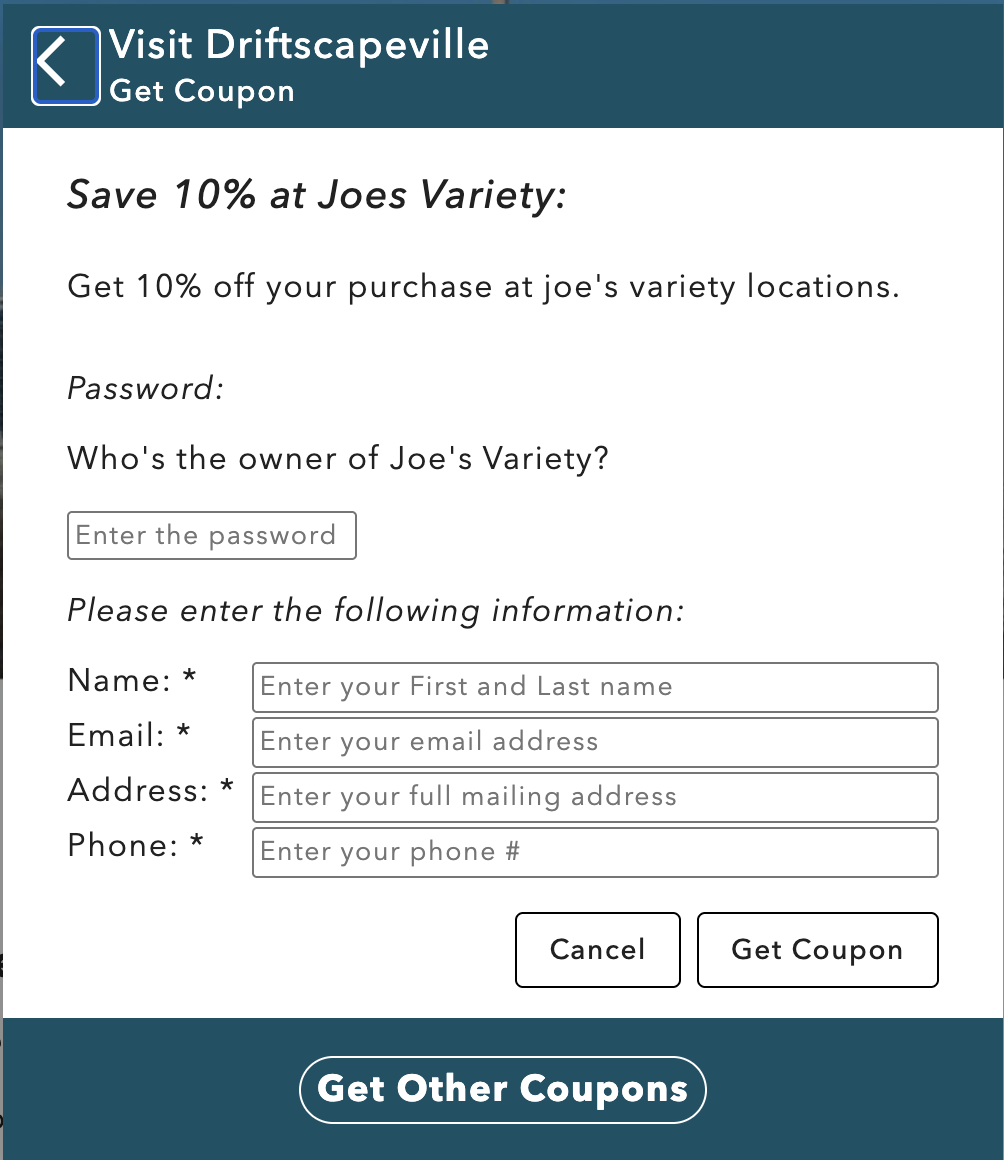
After inputting all the information required, the user will see their coupon in the application. 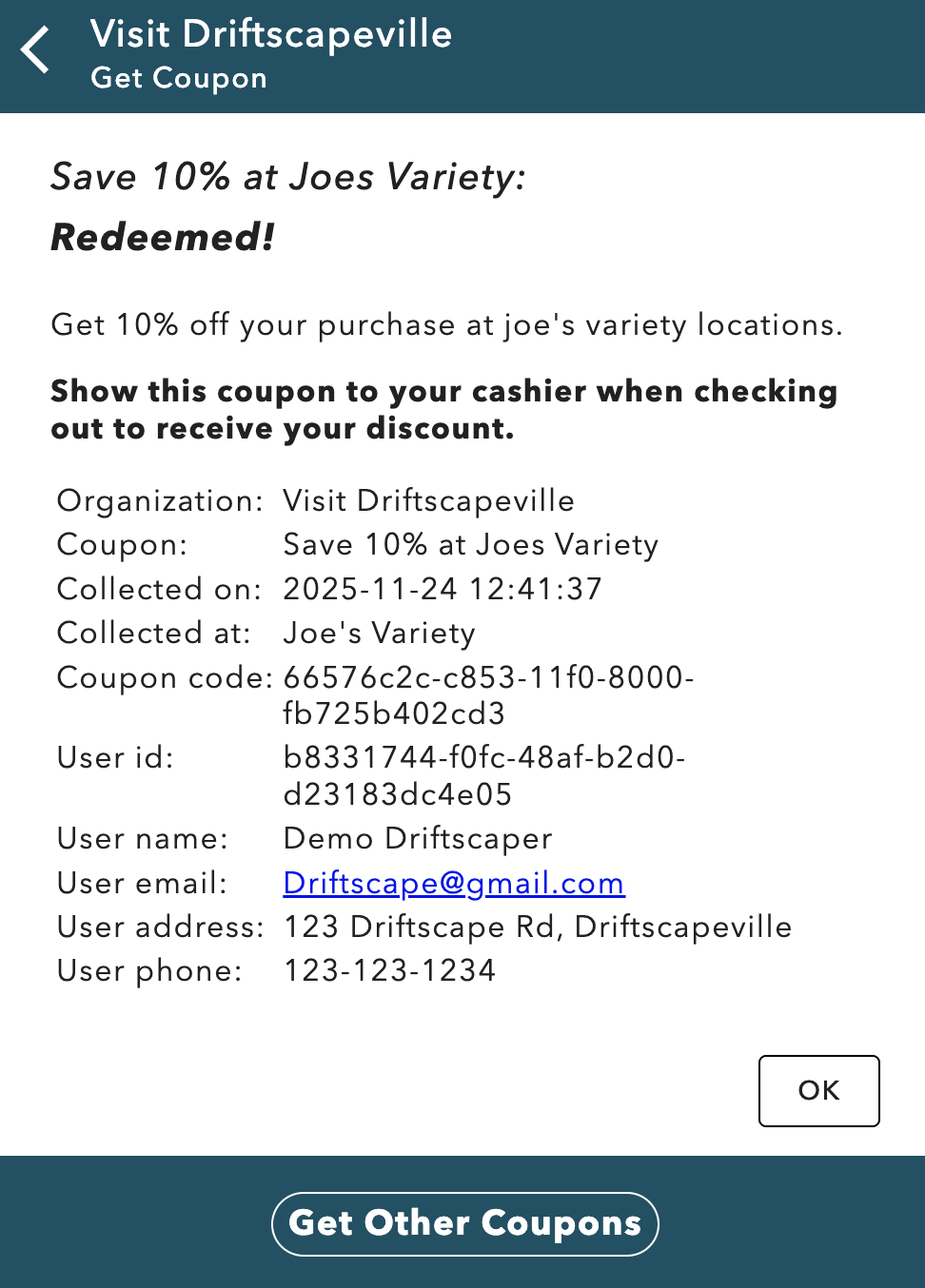
Important: Because the Driftscape CMS does not directly integrate with business’ point of sales each merchant must be able to process this coupon on their end. This can be done using a pre-set button on their POS system accessible to staff at any time. Or by adding a coupon code to the redemption instructions, which customers can give the staff upon checkout.
Step 6: Reviewing your Coupon Redemptions
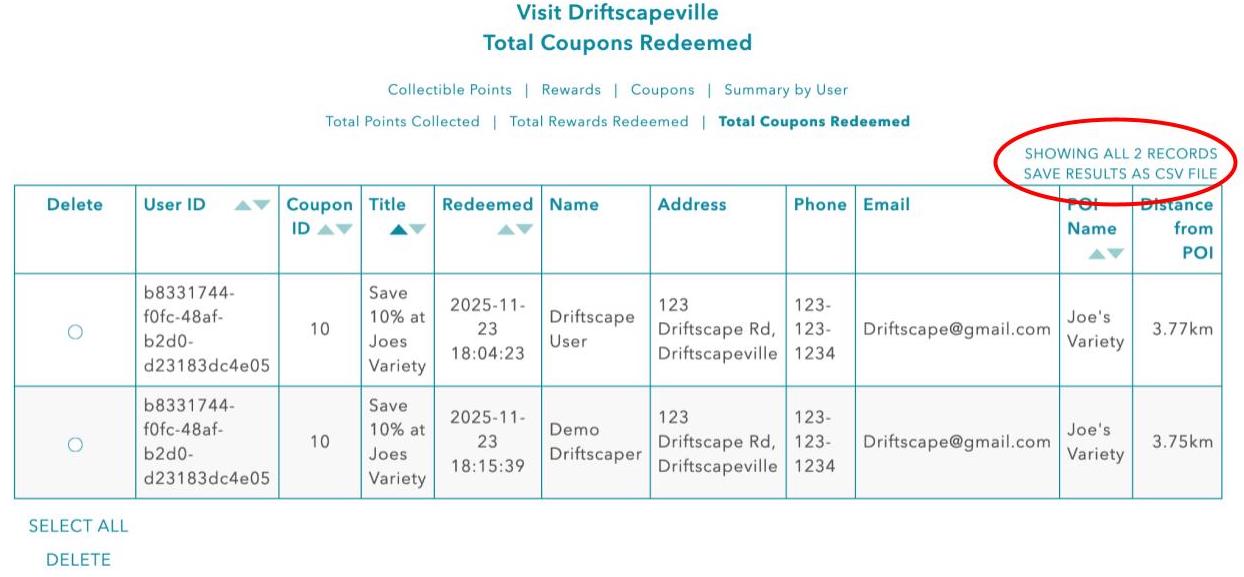
Coupon redemptions are tracked in real time through Driftscape’s internal reporting system. To review your coupon analytics, navigate to your organizations Points/Rewards/Coupons menu.
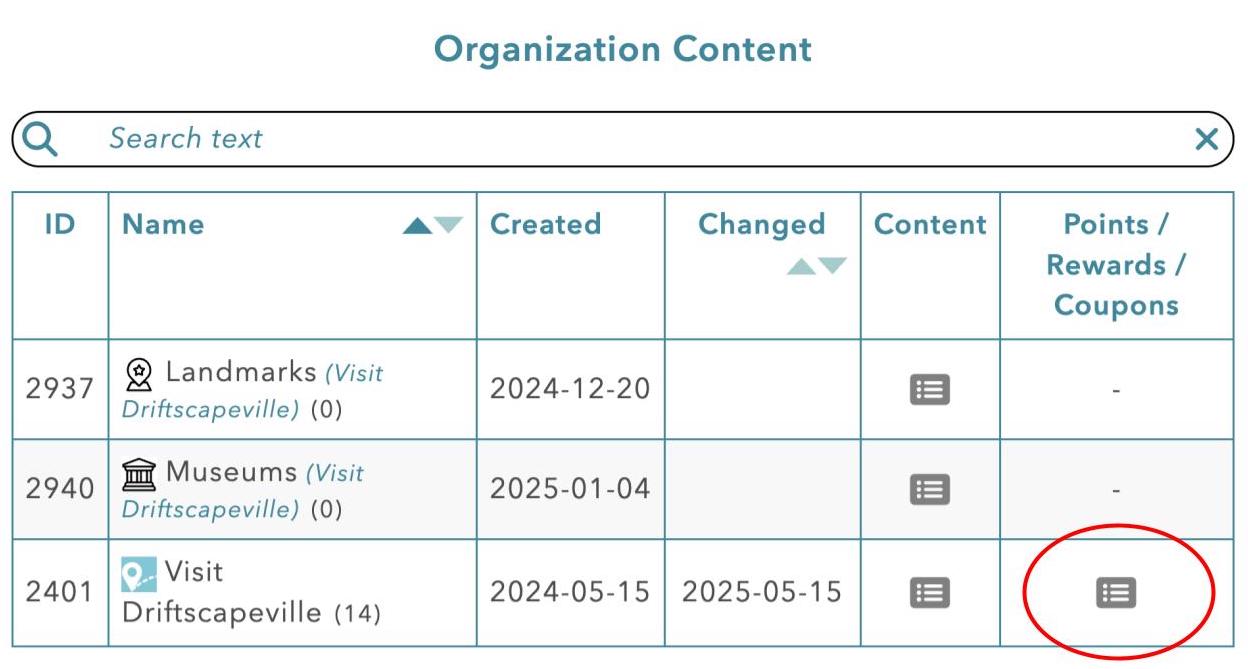
Then select the “Total Coupons Redeemed” tab
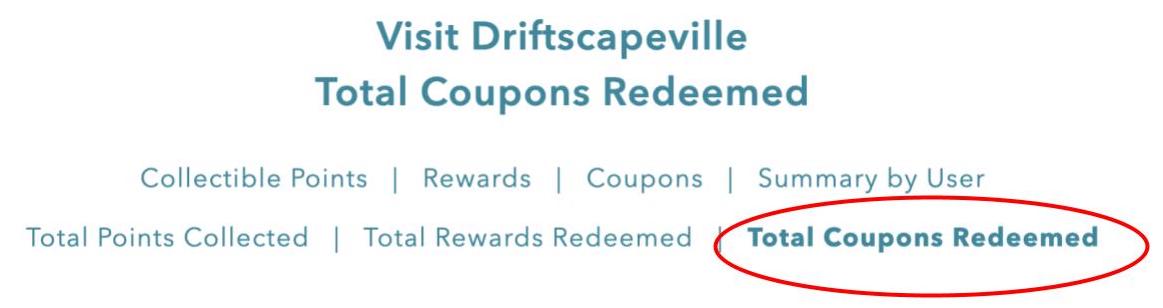
This tab will provide you with detailed information of every user who has redeemed a coupon & which coupon has been redeemed. The table can be exported using the “Save Results as CSV” function, for easy viewing in any spreadsheet software (excel, sheets, numbers etc.).
Related Articles
Was this article helpful?
That’s Great!
Thank you for your feedback
Sorry! We couldn't be helpful
Thank you for your feedback
Feedback sent
We appreciate your effort and will try to fix the article