TABLE OF CONTENTS
- What is a Failed AiListing?
- Examples of Failed AiListings
- Get Started: Diagnosing and Fixing Failed AiListings
- Failed Type 1: Business name does not match actual business name
- Failed Type 2: Business address input does not match the actual business address
- Failed Type 3: Business has a Weak Internet Presence
- Failed Type 4: AiListing generated but Description is Incorrect (Ai Hallucination)
- Failed Type 5: Other AiListing Failure Situations
- Ongoing Best Practice: Reviewing AI generated descriptions
- Related Articles
When you generate an AiListing (formerly Automated Business Directory / ABD), the system uses public online information to automatically build a business listing in Driftscape.
Sometimes this generation fails. In those cases, the listing appears in the CMS with “FAILED AiListing” beside the title, and will not be safe to publish until the underlying problem is fixed.
This article explains what a failed AiListing is, shows common examples, and gives step-by-step instructions for diagnosing and fixing each failure type.
What is a Failed AiListing?
A failed AiListing is a business listing that Driftscape could not generate successfully from the information provided in the CMS plus publicly available internet data.
In the CMS:
The listing appears in your Org Content table.
The AiListing column may show that an AiListing exists.
But the Title column will display “FAILED AiListing”.
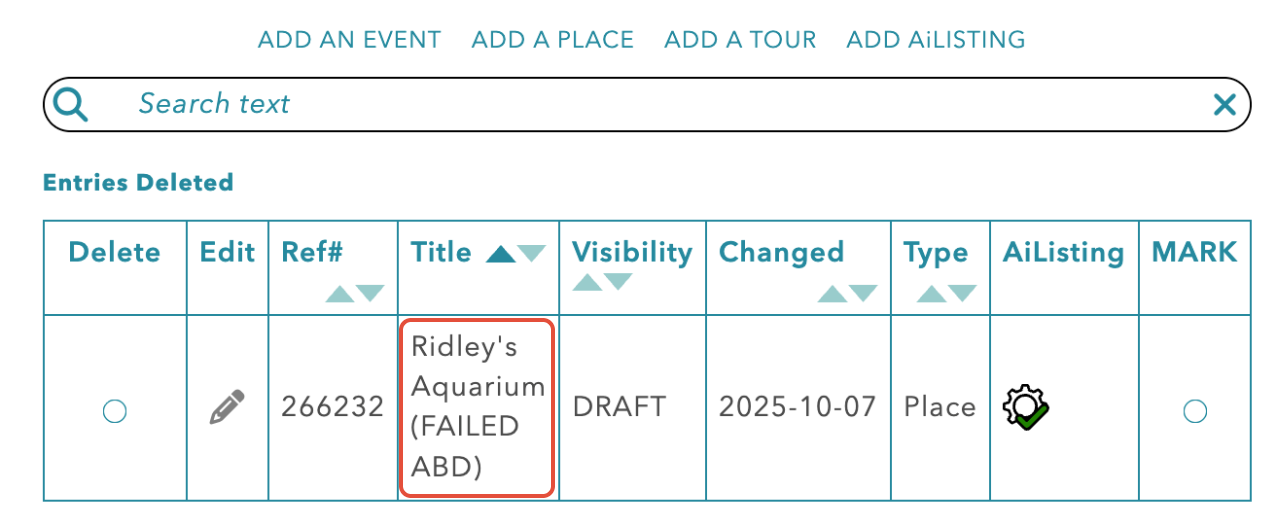
AiListings typically fail to generate when:
The business name you entered does not match the actual business name found online.
The business address entered does not match the real business address.
The business has a weak internet presence (for example, no Google Business / Google Maps listing).
The system generated a listing, but the description is incorrect or misleading due to low-quality source data (an “AiListing hallucination”).
Other data issues (website, longitude/latitude, images, etc.) prevent a reliable match.
Examples of Failed AiListings
These examples show how different types of AiListing failures appear in the CMS, along with why they occur. The detailed troubleshooting steps for each failure type are provided in the following section.
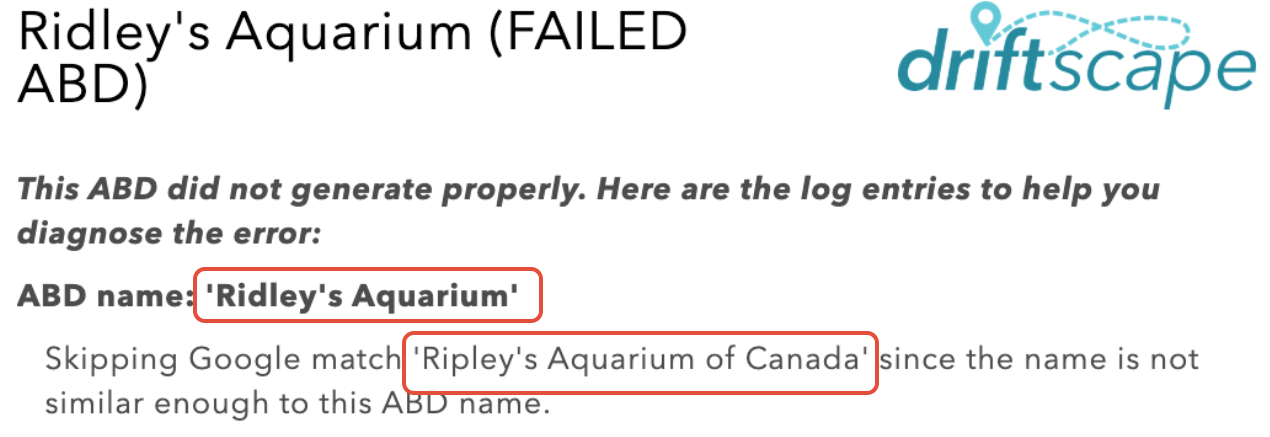
Example 1: Business name mismatch
In this scenario, the AiListing failed because the business name entered in the CMS did not match the official name used online. Since AiListings rely on public data sources such as Google Business Profiles, any spelling or naming mismatch can prevent the system from finding a valid match. As a result, the listing is marked as FAILED AiListing until the name is corrected and regenerated.
You can identify a business name mismatch when:
- The AiListing shows “FAILED AiListing” in the Title column.
- In the details view, the business name in the CMS is spelled incorrectly (for example, “RIDLEY’S AQUARIUM” instead of “RIPLEY’S AQUARIUM”).
- The error message explains that the system could not find a match for the business name.
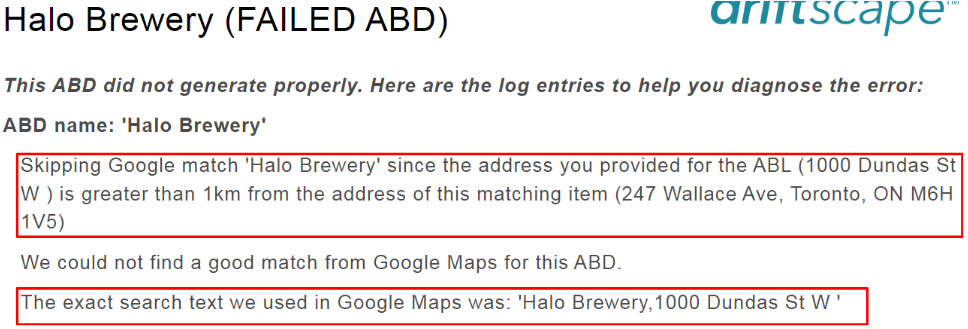
Example 2: Business address mismatch
When matching a business, AiListings perform an internal distance check between the address you provide and the actual business address found online. If these two points are more than 1 km apart, candidate matches are skipped and the AiListing will fail. Even if the business name is correct
In all cases, once a successful match is made, the actual business address from the online source will appear in the final listing — not the address you entered. Your input address is used for matching only, not display.
A business has an address mismatch when:
The business name is correct, but the AiListing still shows FAILED.
The details view shows a message explaining that the input address does not match the actual business address.
The system may list candidate matches but reject them because the addresses differ.
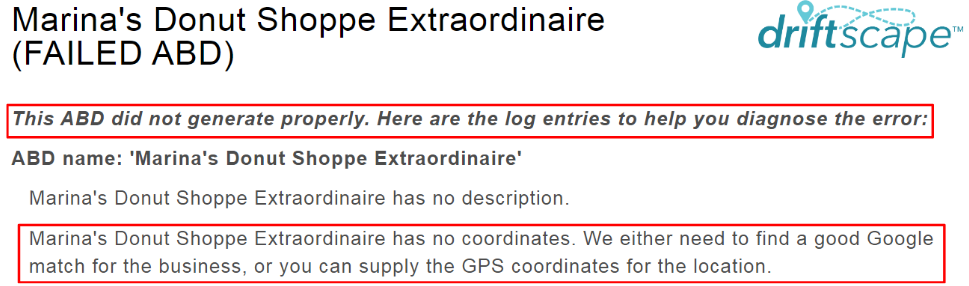
Example 3: Weak Internet Presence
This example shows a case where the AiListing fails because the business does not have a sufficient online footprint. Without a Google Business listing or other well-indexed web presence, the AiListing system cannot verify details such as the correct name, address, and website. In these situations, the listing usually needs to be rebuilt manually or supplemented with more precise information.
You can identify a failed AiListing with weak internet presence because:
- The AiListing fails even though a business name and address are entered.
- The error notes that not enough online data could be found about the business (for example, no Google listing or very limited web presence).
- The business may have a website, but it is not clearly connected to the business name and address
Example 4: AiListing generated but information is incorrect
In this case, the AiListing successfully generated, but the information it produced was inaccurate. This occurs when the AI collects partial or misleading context from online sources and fills gaps incorrectly — a behaviour often referred to as “AI hallucination.” These listings are not marked as failed, but still require correction before being published.
You can identify this scenario when:
The AiListing does not show as FAILED, but the description text is clearly wrong (for example, it describes the wrong business type or location).
This is usually due to incomplete or misleading online information that caused AI to combine details from the wrong place.
The AiListing may fail, or may generate with poor data, when:
The website URL is wrong or points to a generic domain.
Longitude/latitude are missing or inaccurate.
Too many photos are pulled and include unrelated images.
The details view may show several possible causes or hints.
Get Started: Diagnosing and Fixing Failed AiListings
Use this section as a troubleshooting workflow. Start by identifying which failure type you’re seeing, then follow the steps under that heading.
Failed Type 1: Business name does not match actual business name
AiListings use the business name to find a matching public listing (such as a Google Business profile). If the name in the CMS does not match what appears online, the system cannot verify the business and the AiListing fails.
Step 1 - Open the failed AiListing
Select the "edit icon" beside the failed listing you want to fix.

Step 2 - Update the AiListing Business Name
In your AiListing edit page, use the Business Name section to update to the correct business name.
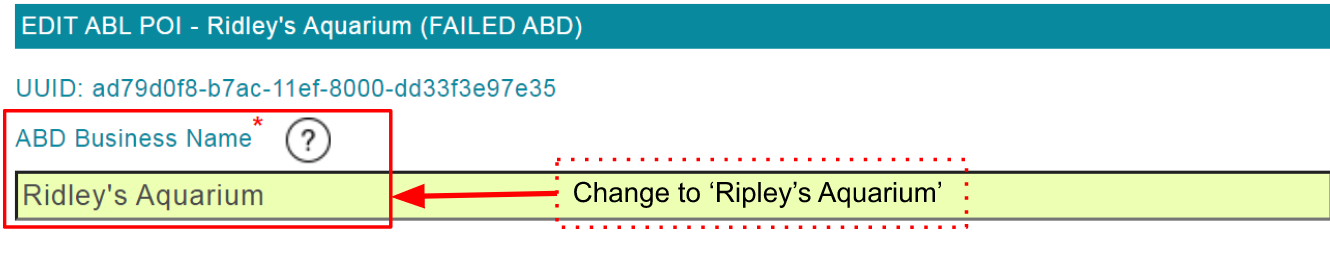
Step 3 - Regenerate and Verify
Select the "UPDATE" button at the bottom of the edit screen

A message about the AiListing regenerating will appear
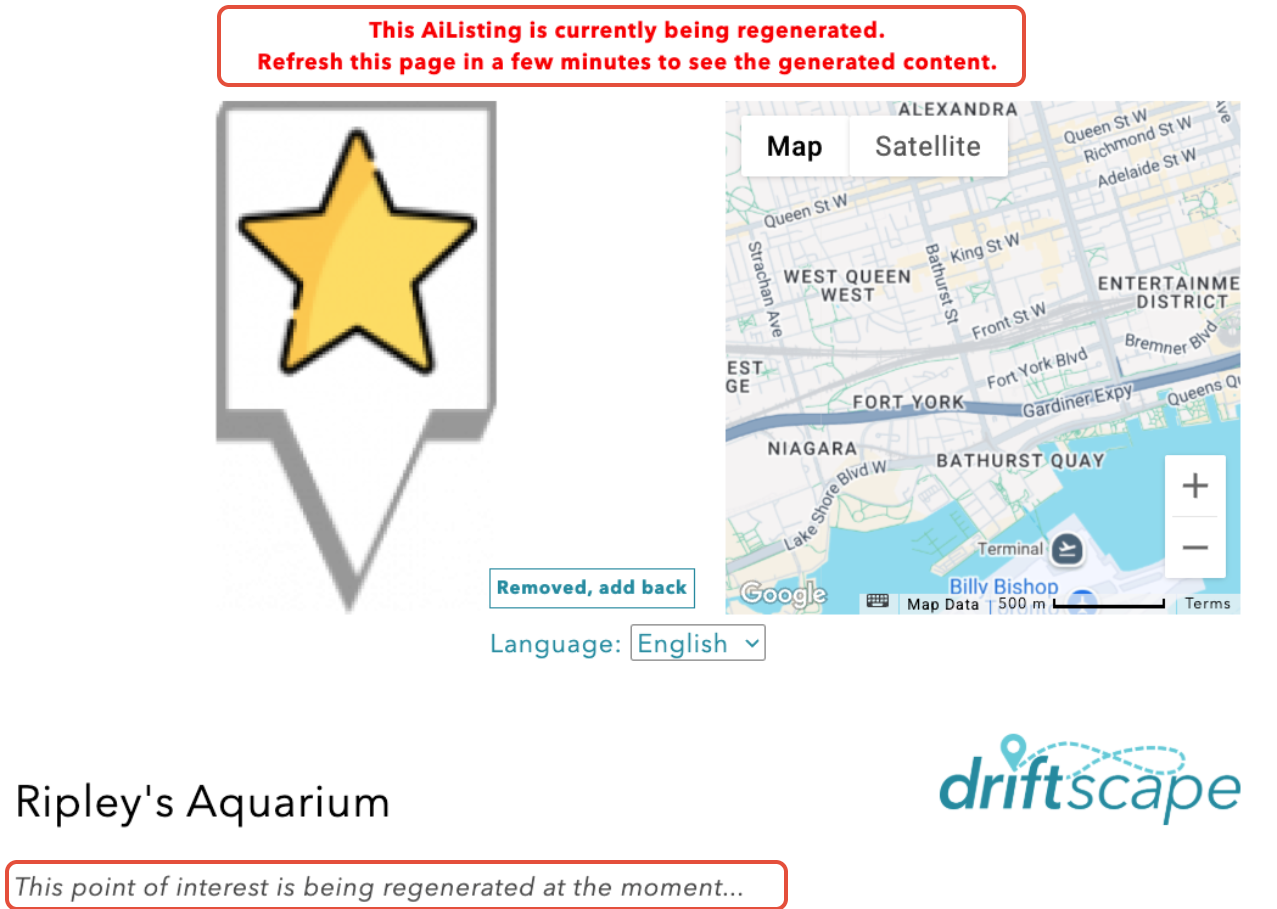
Allow a few minutes for the regeneration process. You will know the process is complete when the "Failed Listing" status disappears from the listing's title

Failed Type 2: Business address input does not match the actual business address
If the address entered in the AiListing does not match the business’ real address, the system may find a candidate but reject it as too far away, or not find a reliable match at all.
Typical causes:
Outdated or incorrect street address
Wrong or missing postal code
Suite / unit numbers that do not map cleanly
Ambiguous addresses for chain businesses (multiple locations)
When to Add an Address
You do not have add an address by default. First attempt generating the AiListing without an address. In many cases, the system will successfully match based on business name alone.
Only add an address when:
• The business is a chain or franchise with many locations (e.g. Starbucks, Tim Hortons)
• The business name is generic (e.g. “Pizza House”)
• There are multiple similar matches within the same region
Step 1 - Review the Error Details
In the Org Content Table, click the title of the AiListing

The details view will show a message explaining why the AiListing failed, including any address mismatch information.
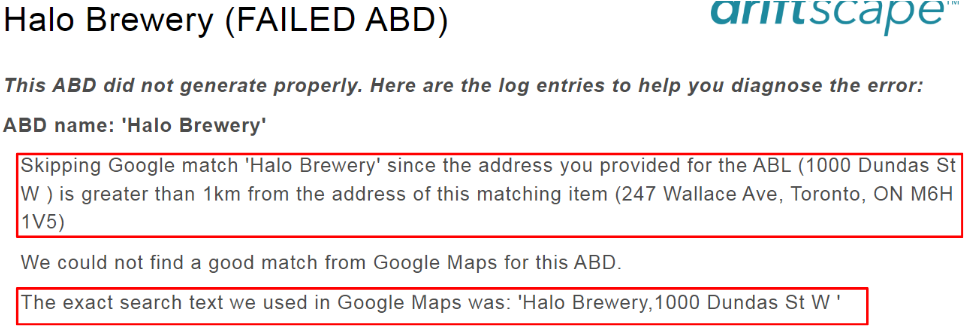
Step 2 - Update the AiListing Business Address
Select the "Edit Icon" beside the AiListing you wish to fix
Before updating, verify the business location using maps.google.com to confirm the precise public address. Do not include suite/unit numbers.
In the address field replace the existing address with the correct address. Then select the update button near the bottom of the page.
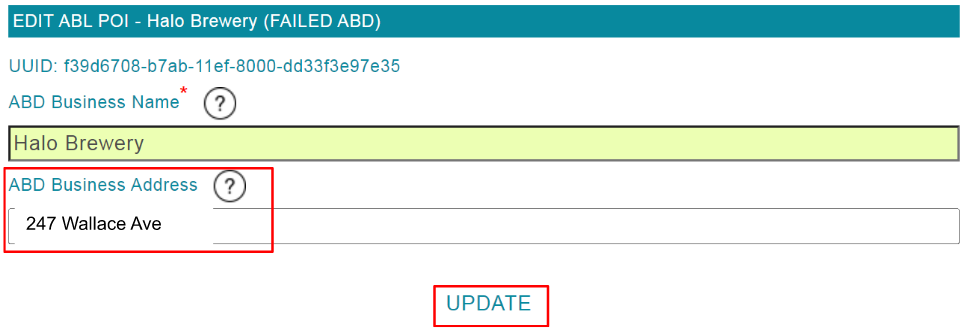
Step 3 - Verify Regeneration
You will receive a message regarding the AiListing regenerating. Allow a few minutes for the system to regenerate your listing
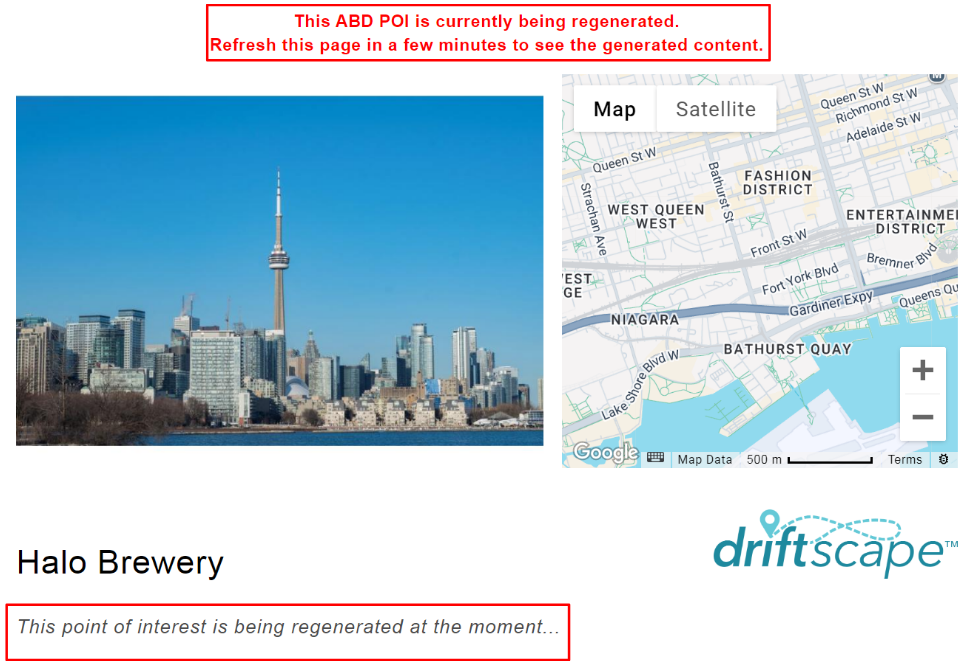
After giving the system five minutes, refresh the org details page and confirm the displayed address matches the real-world address. If the AiListing successfully matches, the final displayed address will be the address from the online source — not the input address.
Failed Type 3: Business has a Weak Internet Presence
Even when the business name and address are correct, the AiListing may fail if the system cannot find enough reliable information online. For example:
The business has no Google Business / Google Maps listing.
The website is very sparse or not easily associated with the business name and address.
In these cases, Driftscape cannot confidently generate an AiListing.
Step 1 - Confirm the business exists online
- Search for the business name and city in Google
- Check whether a Google Business/Google Maps listing exists
- Look for an official website for the business
Step 2 - Add the Correct business details
Select the "edit icon" beside the AiListing you want to edit

Add or update the business name, address and coordinates as required (the more information you can provide, the more accurate the listing will be)
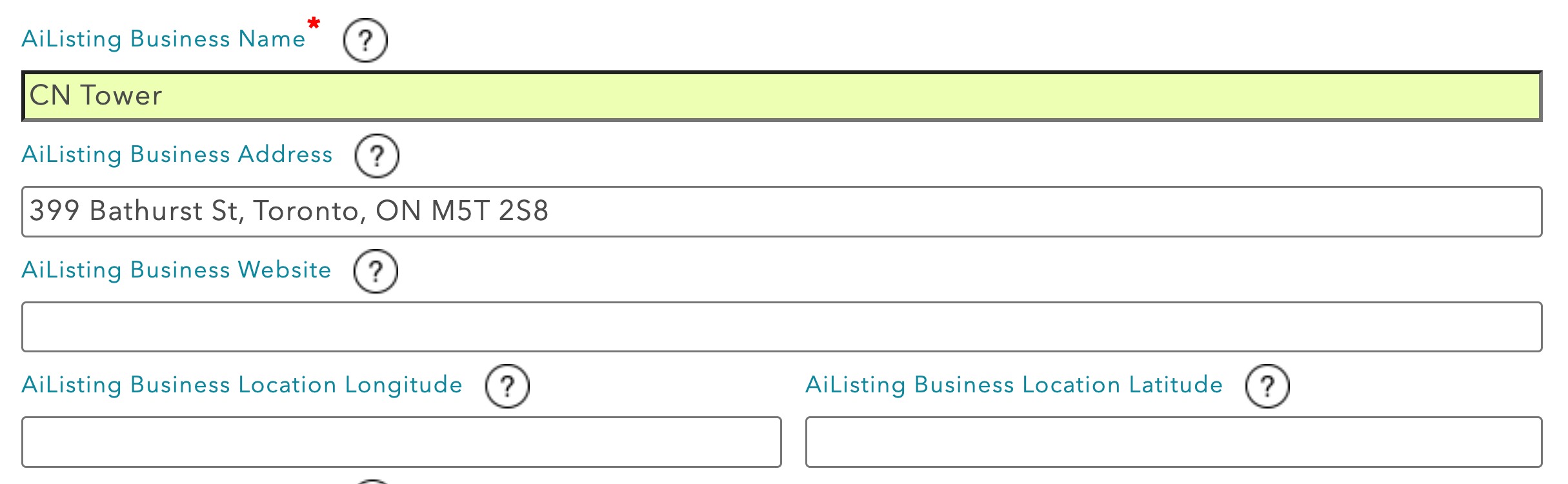
At this time, you can choose to select "UPDATE" at the bottom of the screen and attempt to regenerate the AiListing. However if the business has minimal or no internet presence, you will most likely run into the same issue.
Note - If the business does not appear on Google Business or Google Maps, adding an address will usually not help unless the business is part of a chain.
If this is the case, continue editing the remaining details of the AiListing manually.
Choose "Replace Description" in the "AiListing Description Replacement" drop down menu

Then select "Short POI descriptions" in the AiListing Description Creation drop down menu

Add your desired description to the "AiListing Business Description" field. Then upload any a business image to the AiListing Image Override.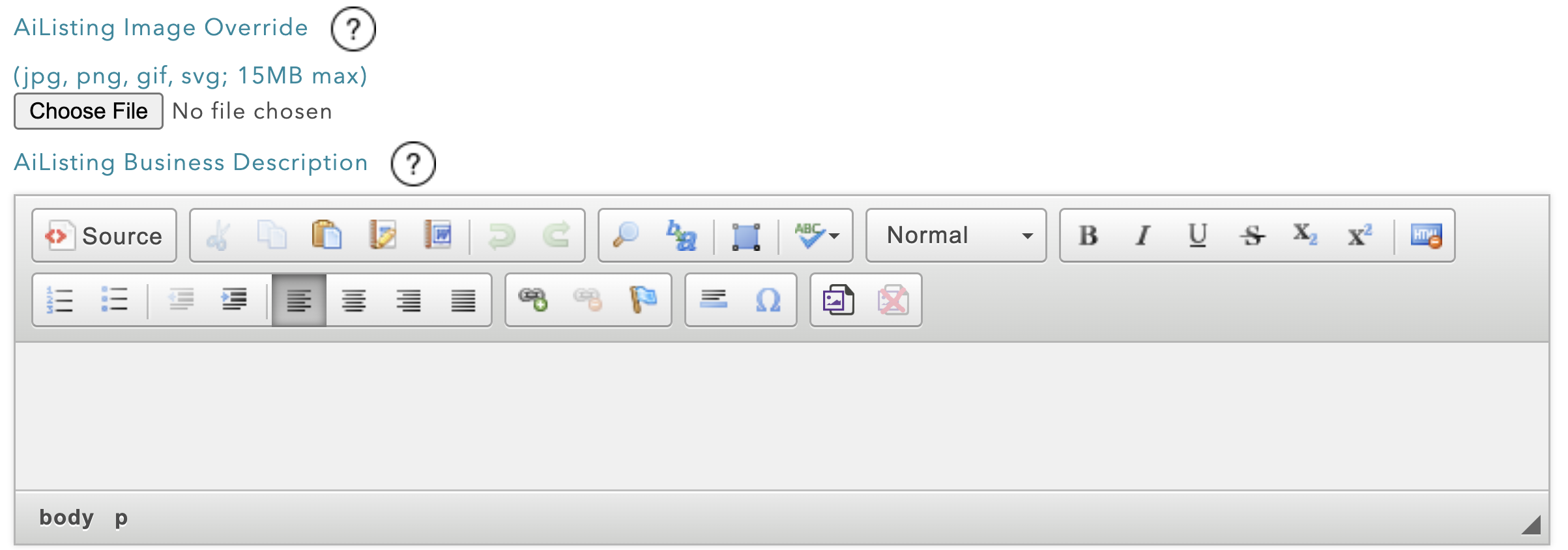
The AiListing Closed to Draft check box should be unchecked if the business is currently open. Leave it checked if the business is closed
You can also add a general operating date range if the business is seasonal (ie. May - September)

The remaining fields give you the same editing properties as general POIs. See How to Add a Place for a detailed overview...
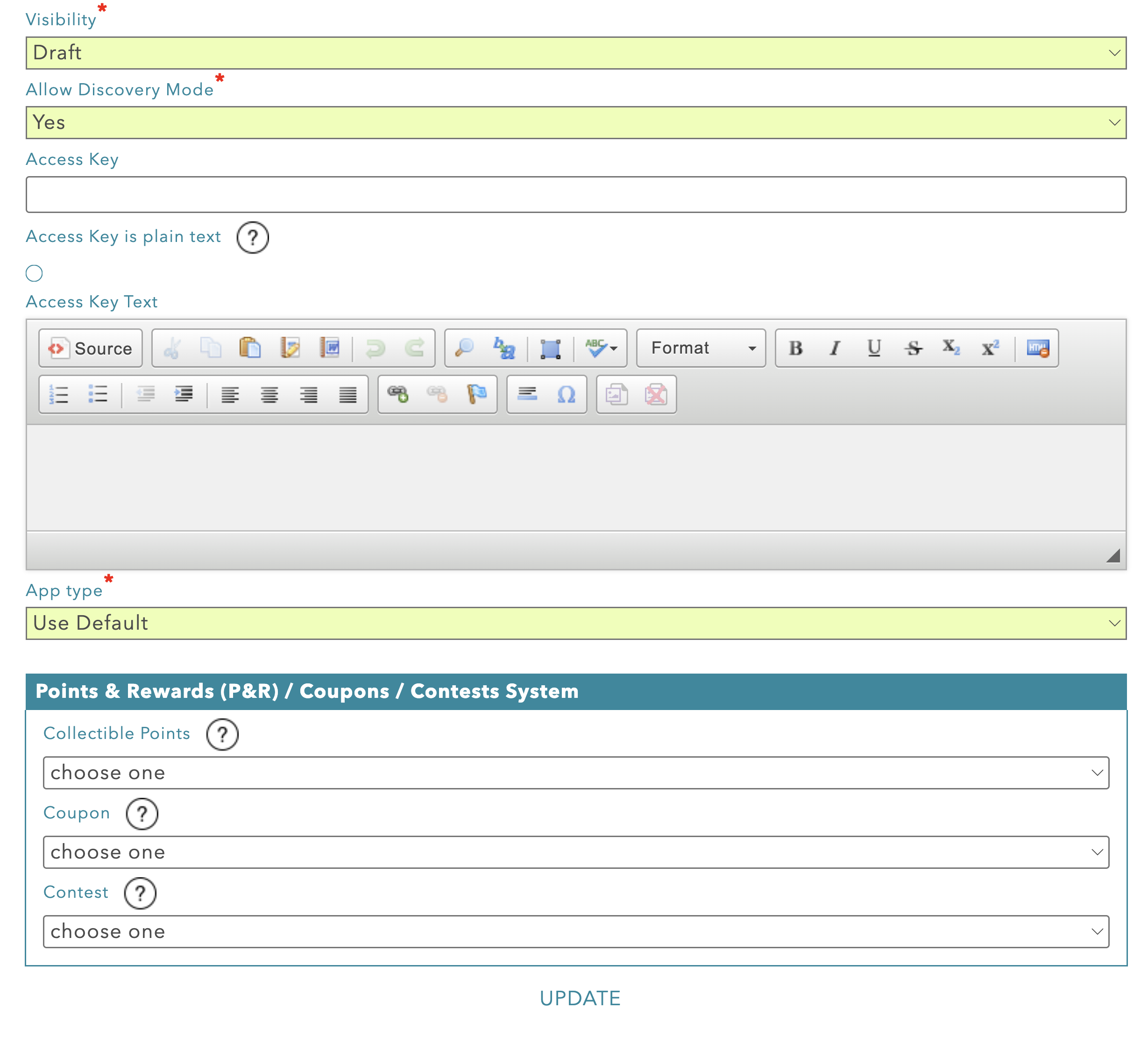
Visibility: Set to public for users to see this AiListing in Driftscape
Allow in Discovery Mode: Set to yes to allow users to discover the POI while browsing Driftscape (no only allows users to find the content from direct links)
Access Key: Add if you want this AiListing to be password protected
Access Key Text: Include as a hint for the access key, otherwise add "enter access key"
App Type: Default uses your organization settings, otherwise choose which app(s) the content is visible in (webapp, mobile or both)
P&R/ Coupons / Contests System: Use this menu to assign points, rewards, coupons and contests to your AiListing. See Coupons Overview, Points and Rewards Overview, and Contests and Voting Overview for more details.
Step 4 - Regenerate and Review
Once you have added all the listing details, select "UPDATE" at the bottom of the page. You will still see a regeneration message as the system attempts to find the AiListing with your new details. However the description, address/location, title and other details you added will automatically override anything the Ai System finds.
Once the process is done (approximately five minutes) you will see your updated AiListing with correct details.
Failed Type 4: AiListing generated but Description is Incorrect (Ai Hallucination)
Sometimes the AiListing generates successfully, but the description is wrong or misleading because the AI combined information from the wrong place or inferred incorrect details.
Examples:
The description mentions a different business type (e.g., a café described as a museum).
The description references services the business does not offer.
Step 1: Verify the business details
Visit the business' official website to confirm the business details and overview.
Step 2: Open the AiListing description settings
Select the "edit icon" beside the AiListing you want to edit

Change the description mode to "Short POI Descriptions"

Then add the business' correct description to the business description field
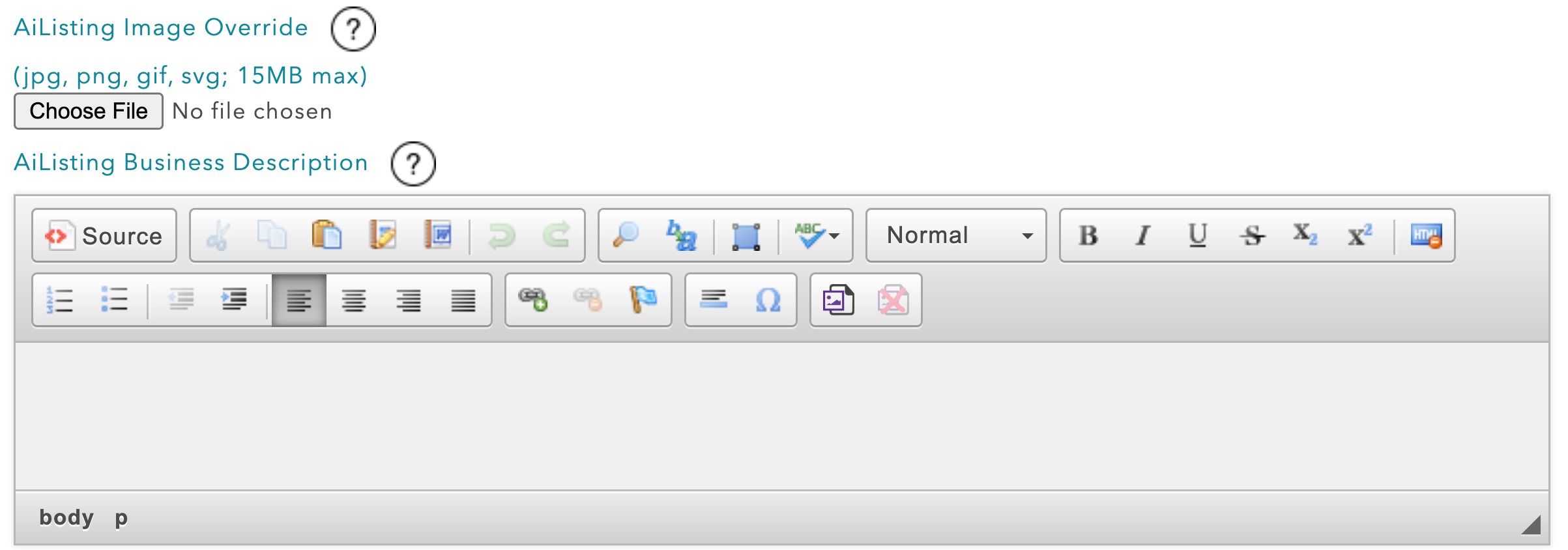
Confirm the remaining AiListing details are correct. If they aren't update them to display the correct business details. Then select "UPDATE" at the bottom of the page.

Failed Type 5: Other AiListing Failure Situations
Although rare, in addition to name, address, and web presence, several optional AiListing fields can help the system find and present the business correctly.
These fields are configured when you Add or Edit an AiListing.
Key fields:
AiListing Longitude and Latitude - Use these to pinpoint the business on the map when addresses are ambiguous.
Maximum AiListing Photos - Reducing this value can help avoid unrelated or low-quality images from the web.
AiListing Image Override - Use this to provide your own images instead of (or in addition to) those pulled automatically.
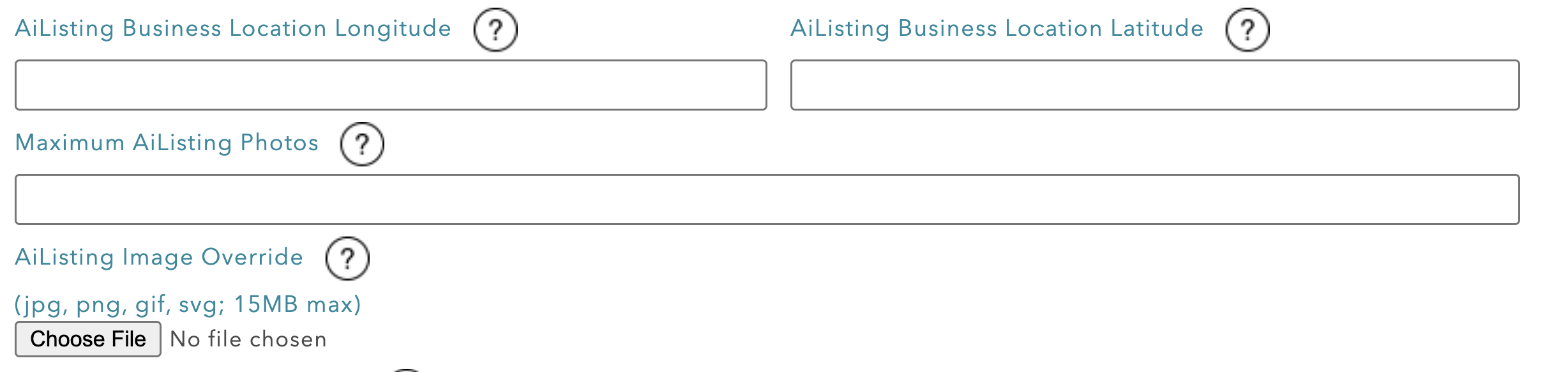
Step 1 - Add precise coordinates if needed
Retrieve the coordinates from Google Maps, then enter them into the AiListing Longitude and AiListing Latitude fields. For chain businesses, adding a verified address can help AiListings select the current location.
Step 2 - Control your image count
If incorrect images are being added to the listing, lower the maximum AiListing Photos value. Typically between 2 and 4 is a good display number.
Alternatively, use the AiListing Image Override feature to add you own image to the AiListing
Step 3 - Update your Listing
Once you have added all the additional details, select update and allow five minutes for the AiListing to regenerate.

Ongoing Best Practice: Reviewing AI generated descriptions
Even when AiListings do not fail, we strongly recommend reviewing every generated listing before making it public:
Confirm the Title, Address, and Business Website.
Read the Description carefully for accuracy and tone.
Check that Photos and Business Hours look correct.
Keep visibility as Draft until you are satisfied.
If you find any errors, use the steps above (especially under Failed Type 4 and Failed Type 5) to correct and regenerate.
Related Articles
Was this article helpful?
That’s Great!
Thank you for your feedback
Sorry! We couldn't be helpful
Thank you for your feedback
Feedback sent
We appreciate your effort and will try to fix the article