Get Started: Adding MemoryKPR Content
Step 1: Access the Driftscape Content Management System (CMS)
Step 2: Add Your Embed Code to the POI
Step 4: Edit the HTML height (Optional)
Embedding MemoryKPR Content: Tutorial Video
What is Memory KPR?
MemoryKPR is a third-party storytelling platform used by some organizations to collect and display photos, videos, and community stories.
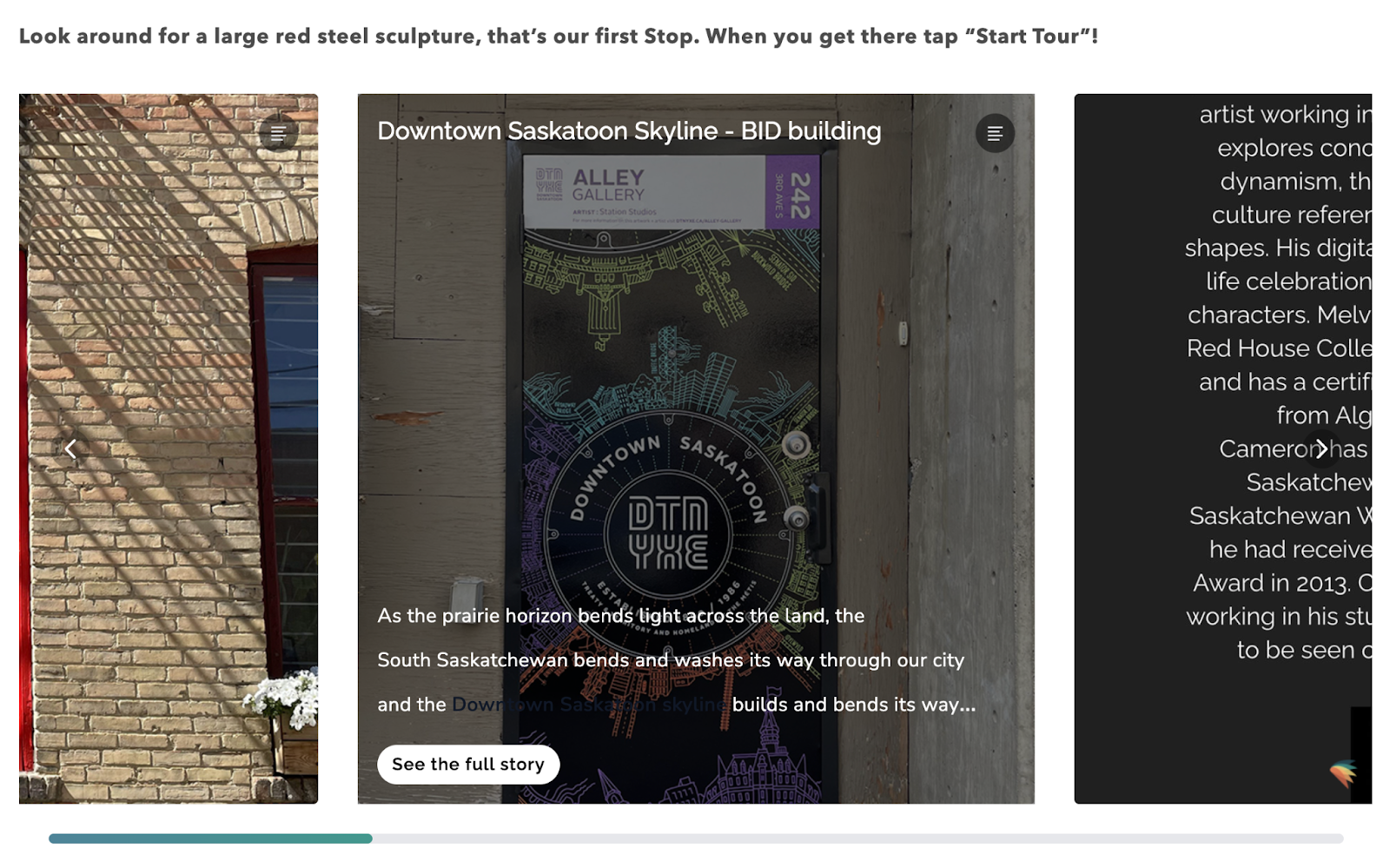
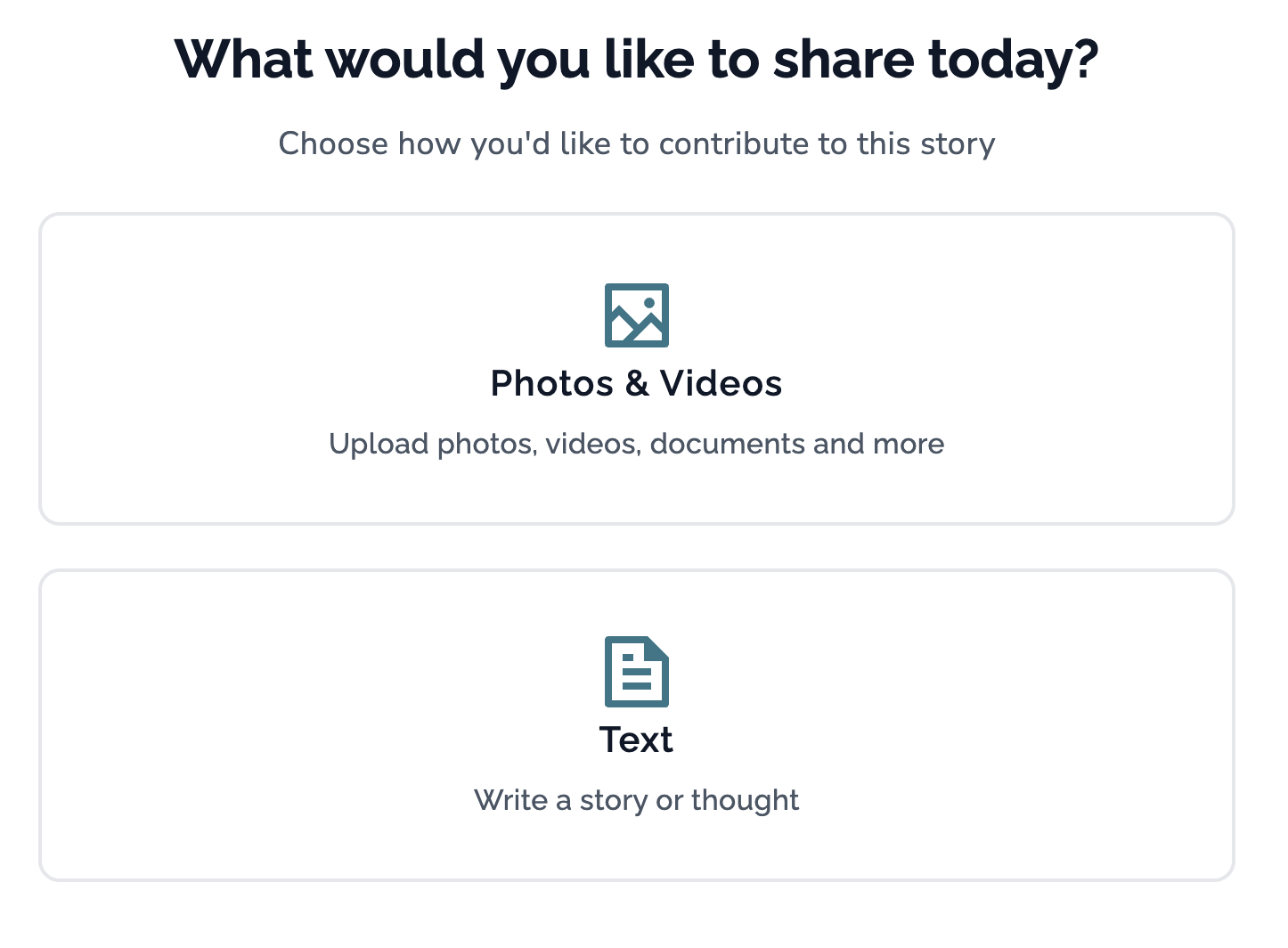
MemoryKPR is not a native Driftscape feature. It is an external platform that can be embedded into Driftscape when an organization is actively using MemoryKPR for their storytelling initiatives. When embedded, Driftscape displays the MemoryKPR story slideshow and contribution form within the app. All story content, submissions, and management are handled directly through the MemoryKPR platform.
This integration is only intended for organizations that have an active MemoryKPR account and are using the platform to manage their stories.
Get Started: Adding MemoryKPR Content
Step 1: Access the Driftscape Content Management System (CMS)
Log in to the Driftscape CMS and navigate to the ORG CONTENT tab.

Then select the organization that contains the POI you are editing
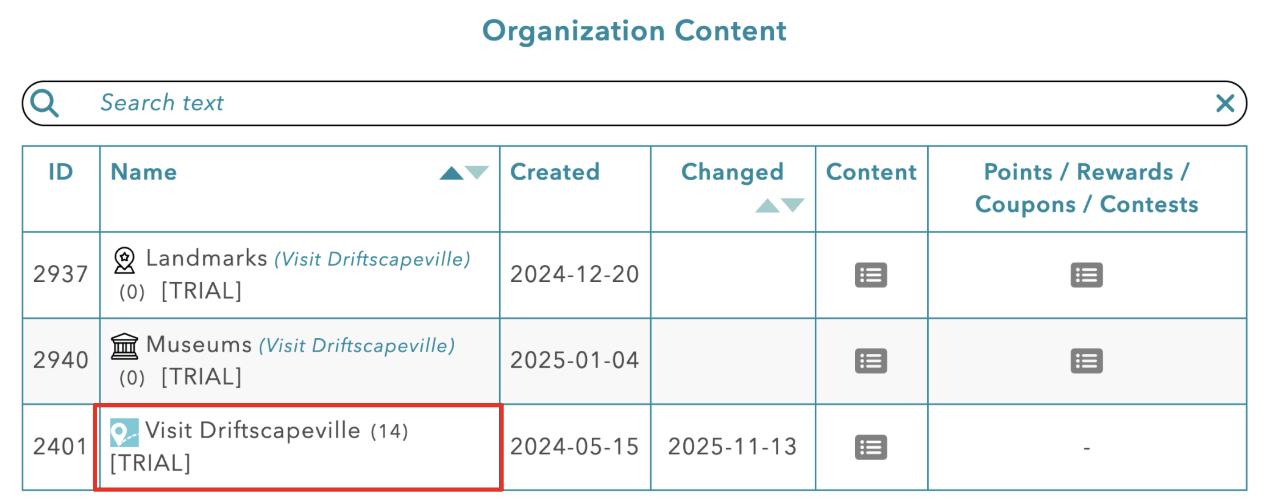
Next click the edit icon beside the POI you want to add the MemoryKPR content to

Step 2: Add Your Embed Code to the POI
In the POI Editor, under Description, select the “Source” button
Scroll to the bottom of the content in the description editor and ensure you are typing underneath your current content
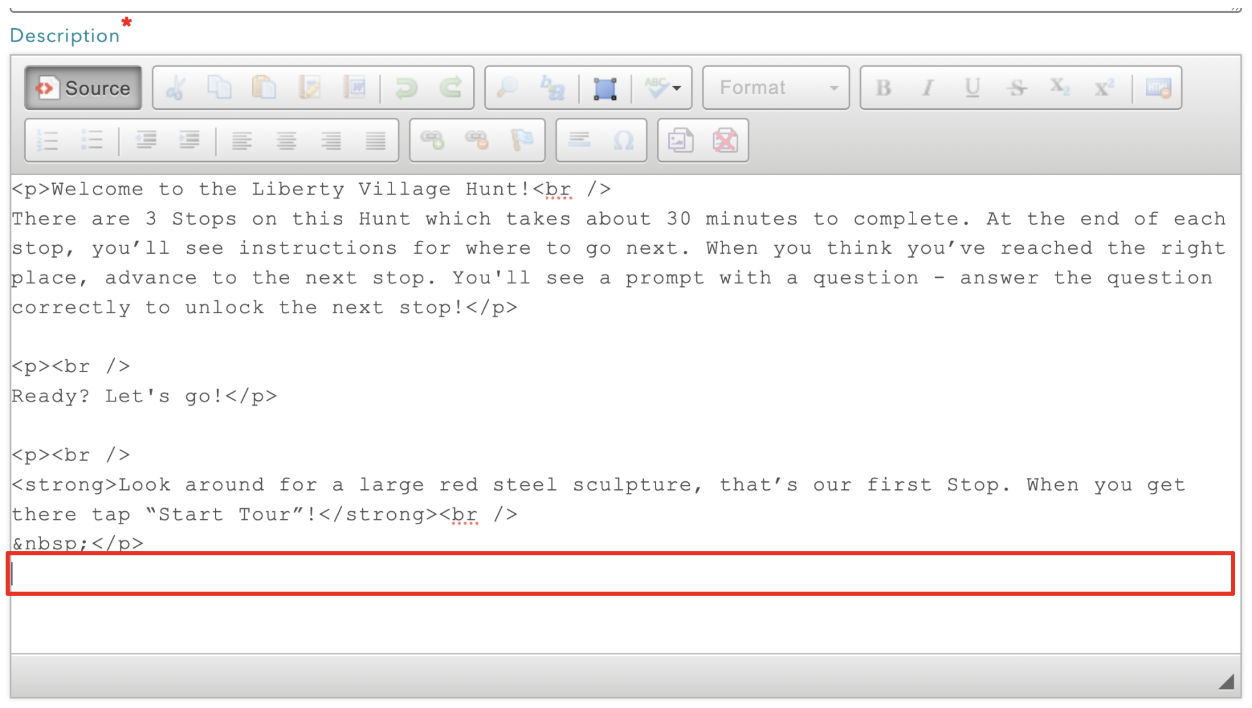
Paste the HTML code below into this section of the Source Code Editor.
Use this code to add the MemoryKPR Slideshow
<div class="dyn-content-link" data-dyn-content-url="https://app.memorykpr.com/external/YOUR-STORY-ID/slideshow/embed?compatibilityMode=true" style="height:576px"></div>
Use this code to add the MemoryKPR contribution form
<div class="dyn-content-link" data-dyn-content-url="https://app.memorykpr.com/external/YOUR-STORY-ID/contribute/embed?compatibilityMode=true" style="height:840px"></div>
Or use this code to add both the slideshow and the contribution form
<div class="dyn-content-link" data-dyn-content-url="https://app.memorykpr.com/external/YOUR-STORY-ID/slideshow/embed?compatibilityMode=true" style="height:576px"></div>
<div class="dyn-content-link" data-dyn-content-url="https://app.memorykpr.com/external/YOUR-STORY-ID/contribute/embed?compatibilityMode=true" style="height:840px"></div>
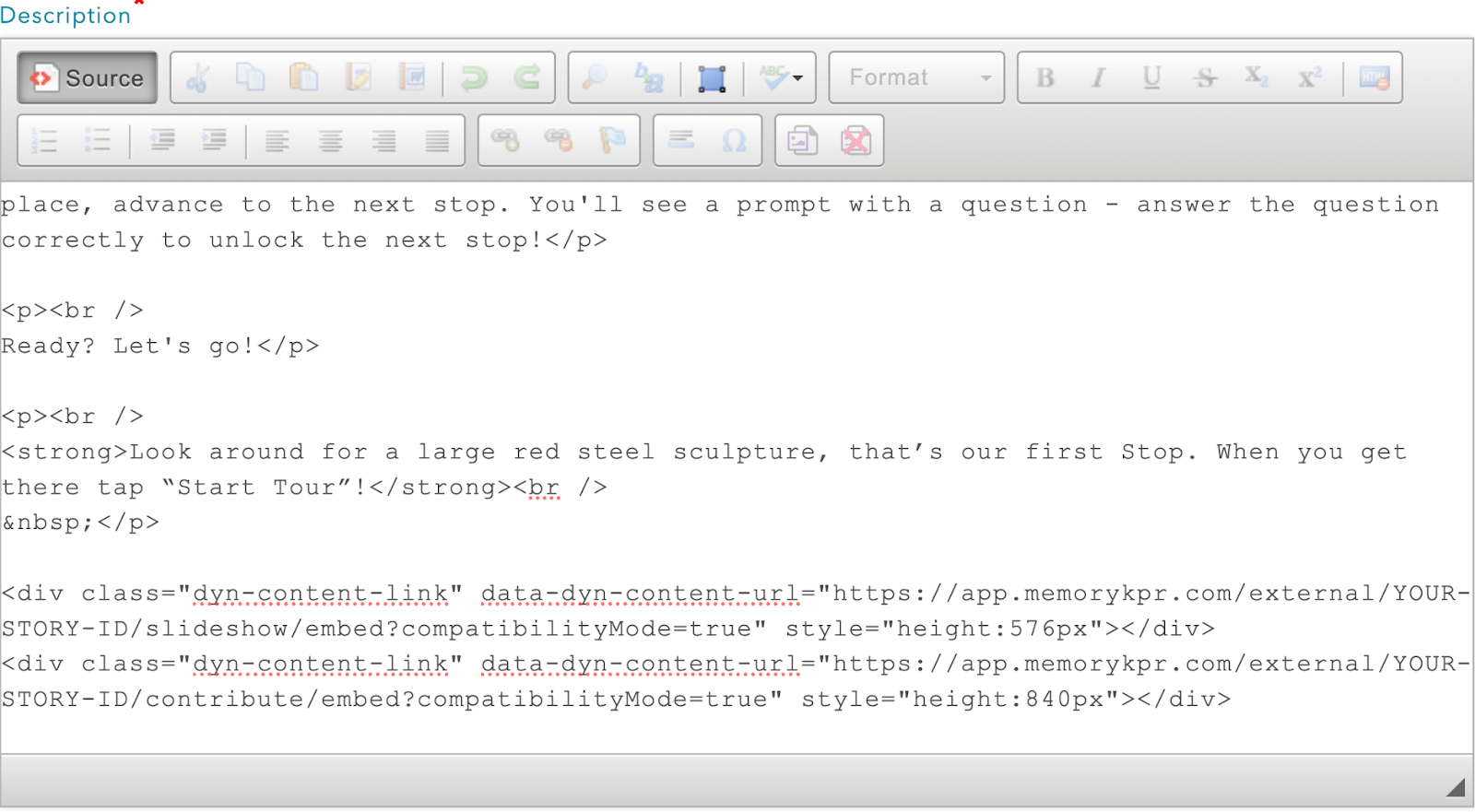
Step 3: Add Your Story ID
Open a new tab in your browser and navigate to the MemoryKPR story that you are adding content from.
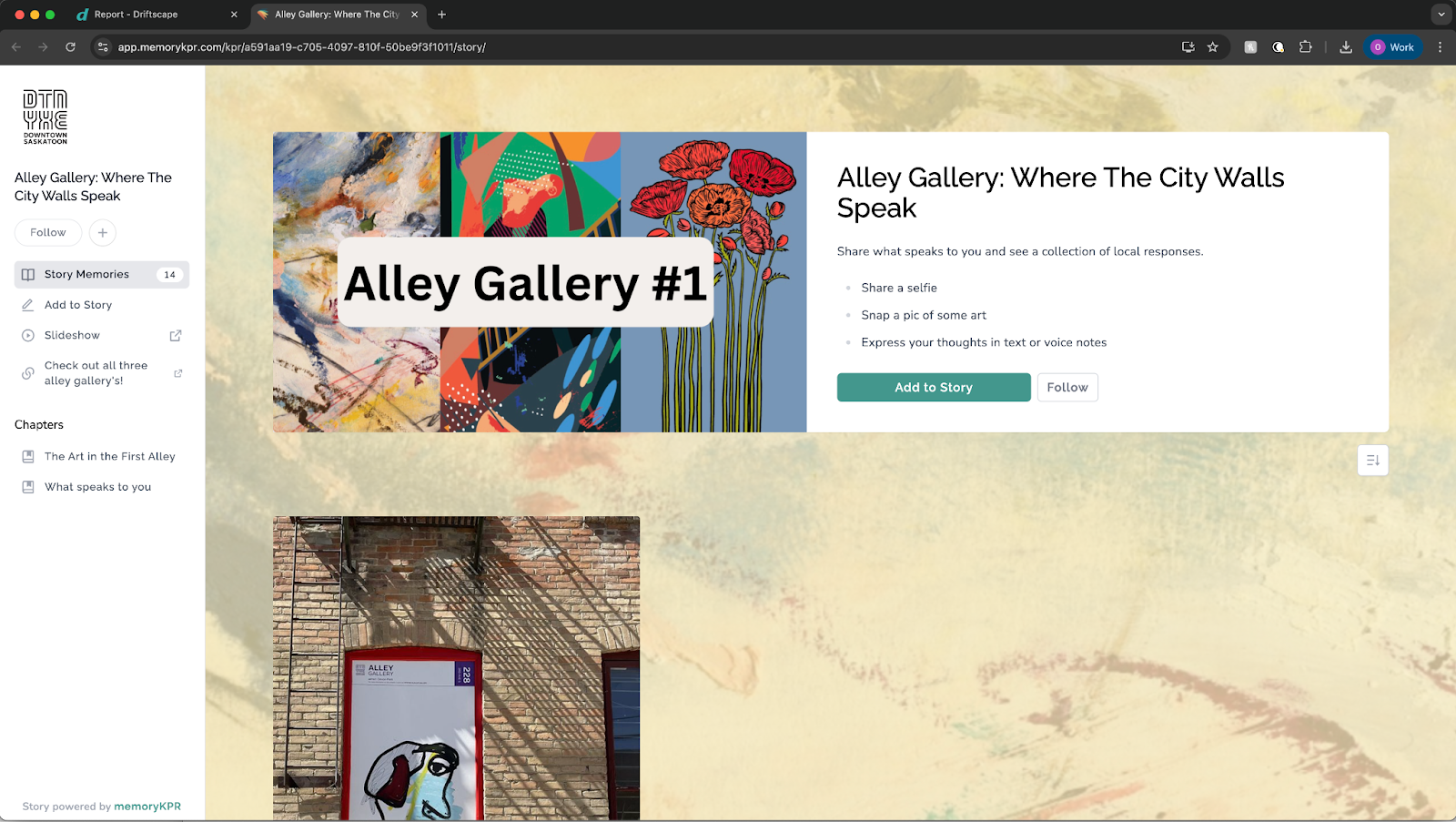
You can find the Story ID in the URL of this page. It sits between “/kpr/” and “/story/”
Copy this ID code (not the entire URL) to your clipboard by highlighting it and clicking CTRL+C (windows) or CMD+C (mac)

Navigate back to the Driftscape CMS browser tab and find “YOUR-STORY-ID” inside the code you added. Replace this text with your story ID code
If you are only adding the slideshow or only adding the contribution form, there is only one spot you need to change this text. If you are adding both, you need to replace this text in two spots
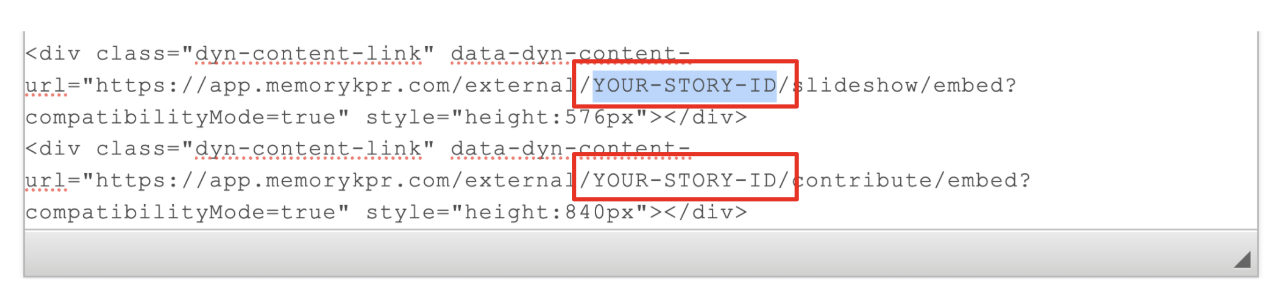
Once you have replaced this text select “update” at the bottom of the page
Step 4: Edit the HTML height (Optional)
If you want to change the height of your content inside the Driftscape App, you can update the source code settings to display your desired size. In order to do this, go back to the source code editor of your POI by clicking edit POI

Then select the Source Code Editor button located in the description editor tools
Inside the HTML code you added to this POI will be a heigh parameter labelled [Style="height 840pt"]. In order to change the height of your HTML box, you must change the number inside of this parameter. The default "840pt" and "576pt" display well in both the Driftscape Web App and Mobile App. However you can customize these numbers to display any height (in points) you desire.
Step 5: Preview the POI
Once you have updated the POI, you should see the slideshow and/or the contribution form at the bottom of the POI description. If you don’t, double check the story ID you used and try again.
Embedding MemoryKPR Content: Tutorial Video
Was this article helpful?
That’s Great!
Thank you for your feedback
Sorry! We couldn't be helpful
Thank you for your feedback
Feedback sent
We appreciate your effort and will try to fix the article