What are Location Permissions?
Examples of Use Cases for Location Permissions
Use Case 1: Collecting Points and Rewards
Use Case 2: Location-Based Tours
Use Case 3: Viewing Nearby Place
Get Started: Enabling Location Permissions on Mobile Browsers
Step 1: Open Safari Settings in your Iphone
Step 2: Enable Location Services for Safari
Step 3: Return to the Driftscape Web App
Step 4: Clear Website Data If Necessary
Android - Google Chrome (Mobile Browser)
Step 1: Locate Chrome Settings on your Phone
Step 2: Edit Location Permissions for Chrome
Step 3: Return to the Driftscape Web App
Step 4: Clear Chrome Storage & Cache
When using Driftscape through your mobile web browser, your device needs to share its location so the app can confirm when you are physically at locations that require on-site presence. This guide explains how to enable location permissions specifically for Safari on iOS and Chrome on Android, ensuring that location-based features on the Driftscape web app work properly.
What are Location Permissions?
Location permissions allow your web browser to access your device’s GPS and share it with the Driftscape web app. Without this permission, you won't be able to complete actions that require real-world verification, such as collecting points or rewards that require you to physically be there.
Location permissions remain entirely in your control, and you can enable or disable them at any time.
Examples of Use Cases for Location Permissions
Use Case 1: Collecting Points and Rewards
Some rewards require you to be physically present. When location access is blocked, the Driftscape web app displays:
Use Case 2: Location-Based Tours
Tours that unlock as you reach each stop depend entirely on browser location access.
Use Case 3: Viewing Nearby Place
The “nearby” view requires browser-based GPS access to show accurate distances and recommendations.
Get Started: Enabling Location Permissions on Mobile Browsers
Below are the steps for each supported device/browser combination.
IOS - Safari (Mobile Browser)
Step 1: Open Safari Settings in your Iphone
Locate the setting app in your Iphone and tap to open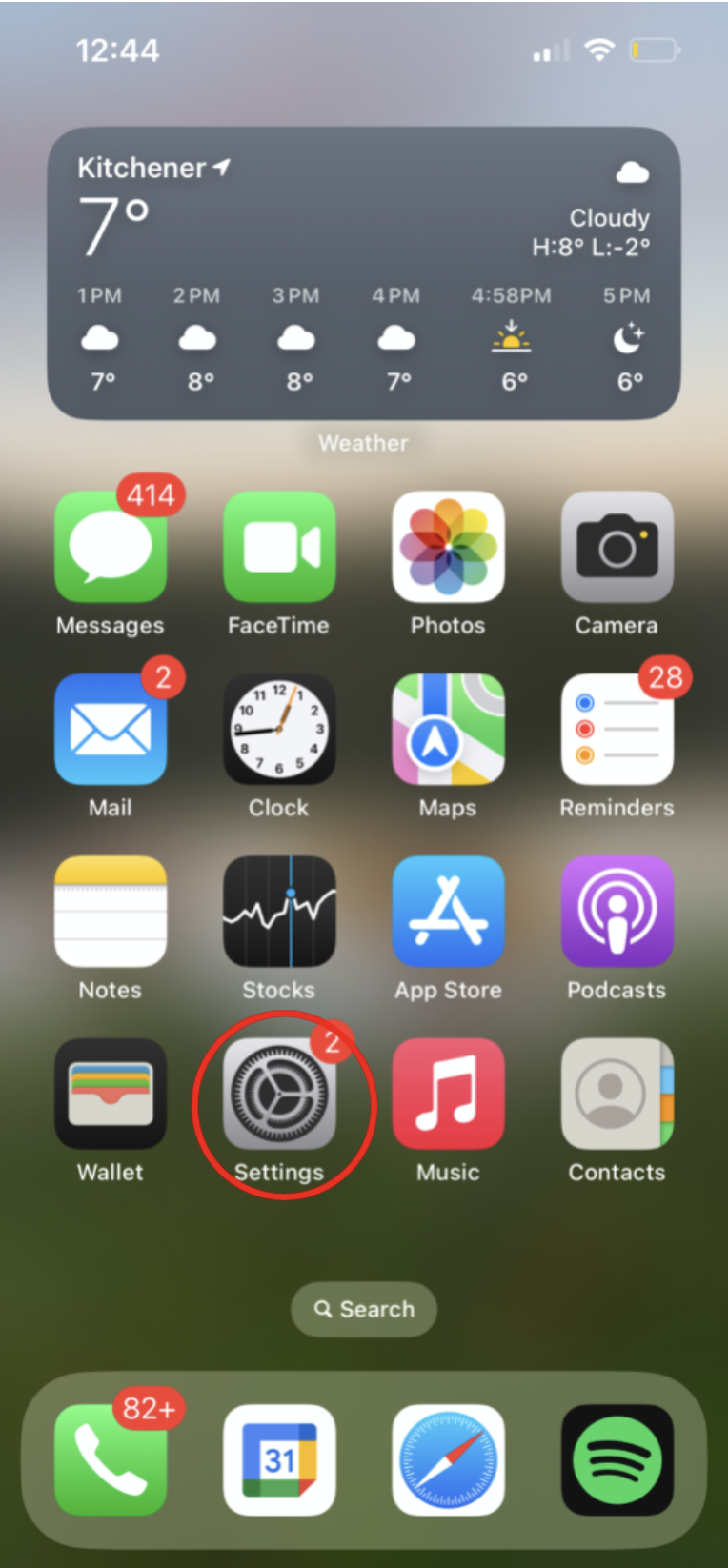
Select the “Apps” section in your settings menu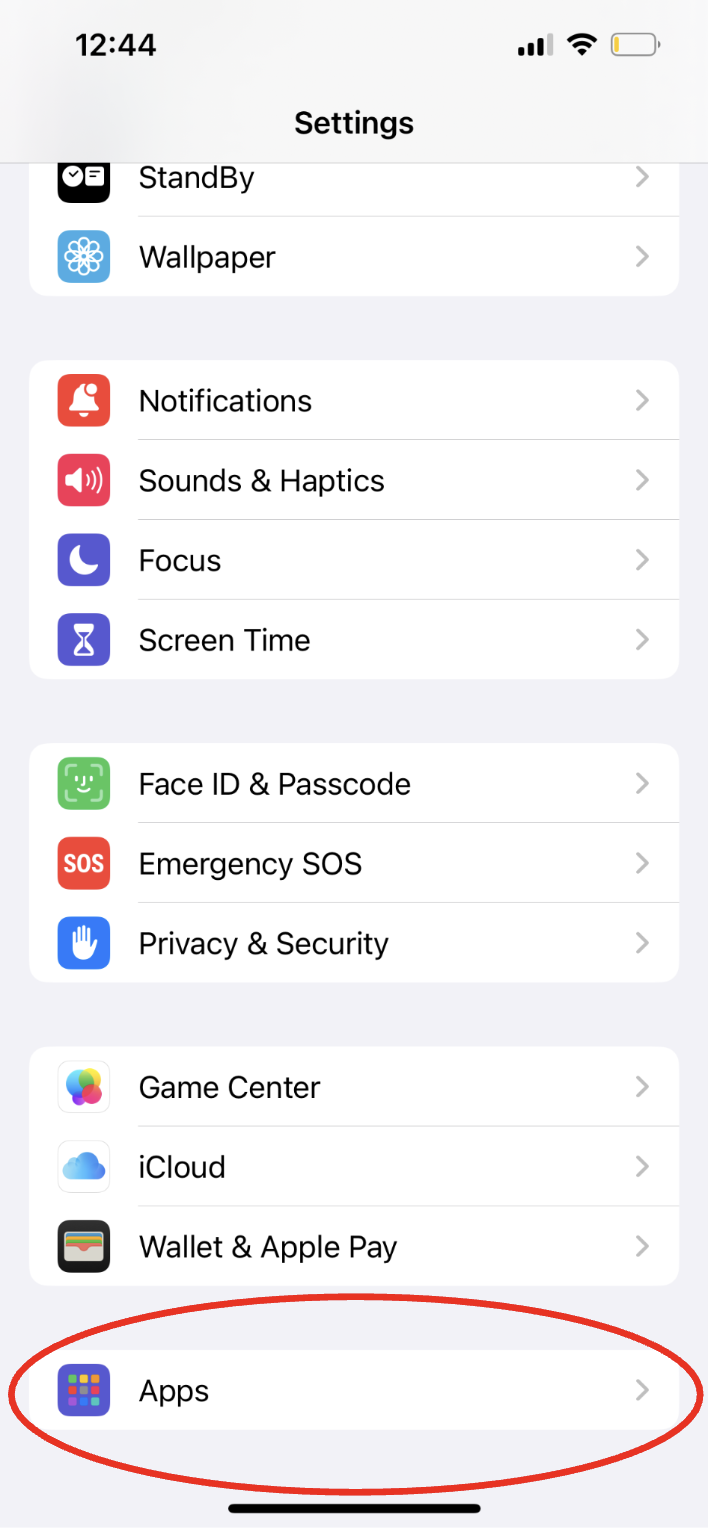
Navigate to Safari Settings and select “Safari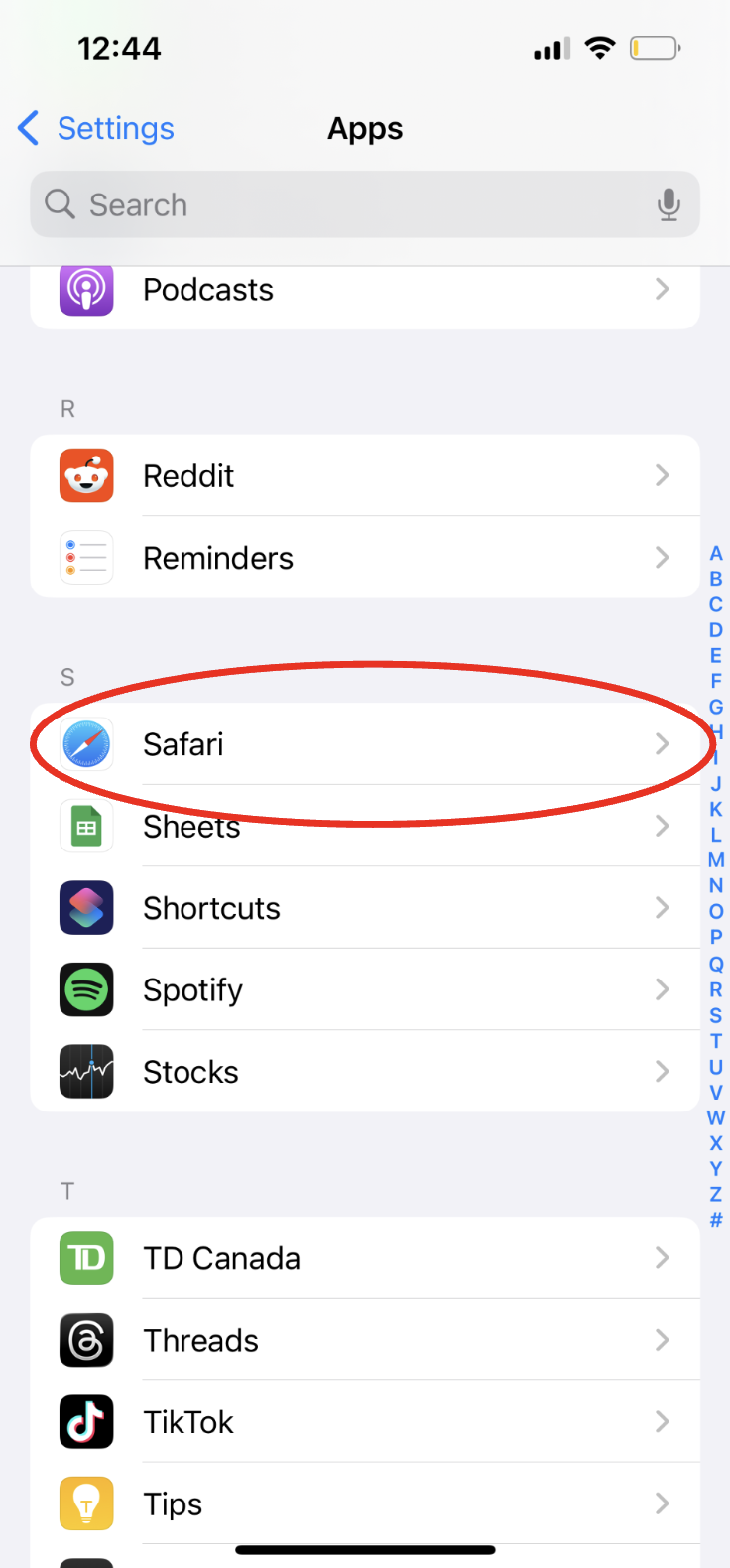
Step 2: Enable Location Services for Safari
Locate the “location” tab near the bottom of the page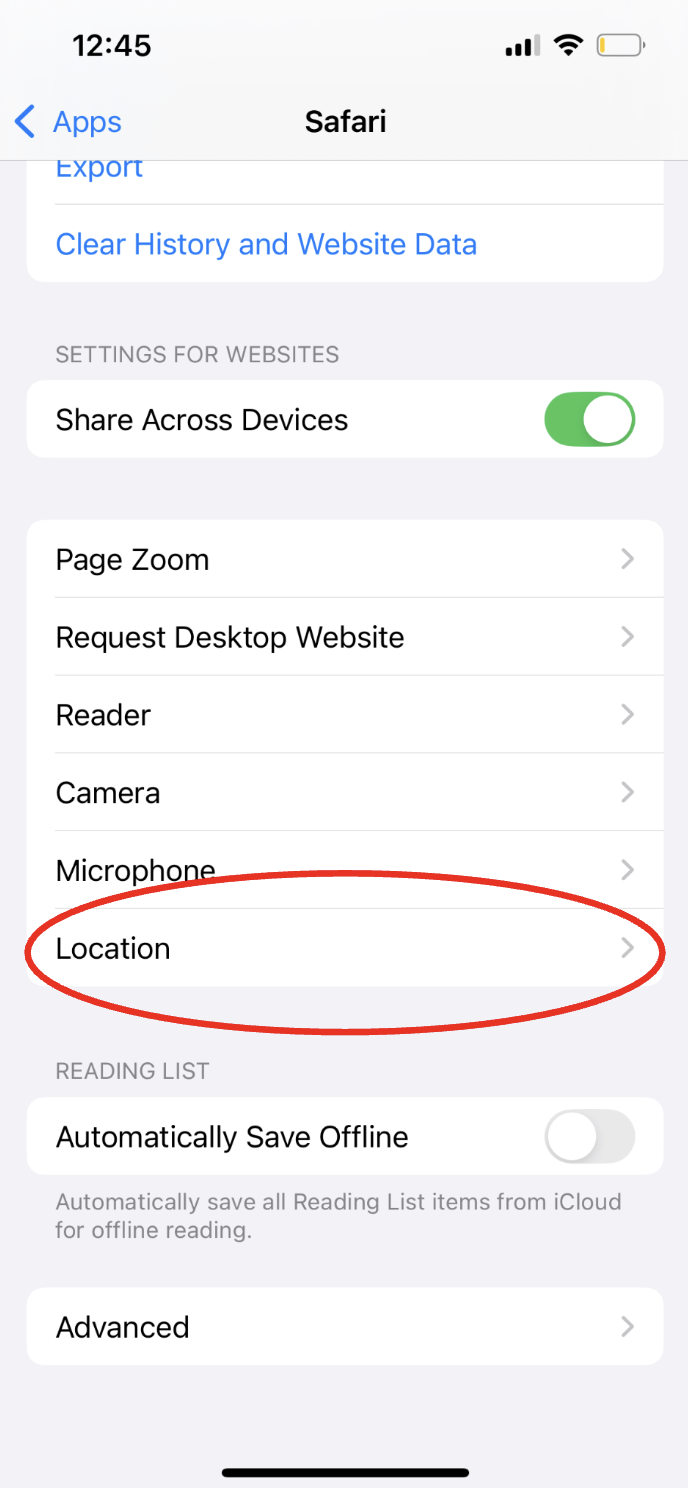
Select “Allow” in the location tab, a green check mark will appear beside your selection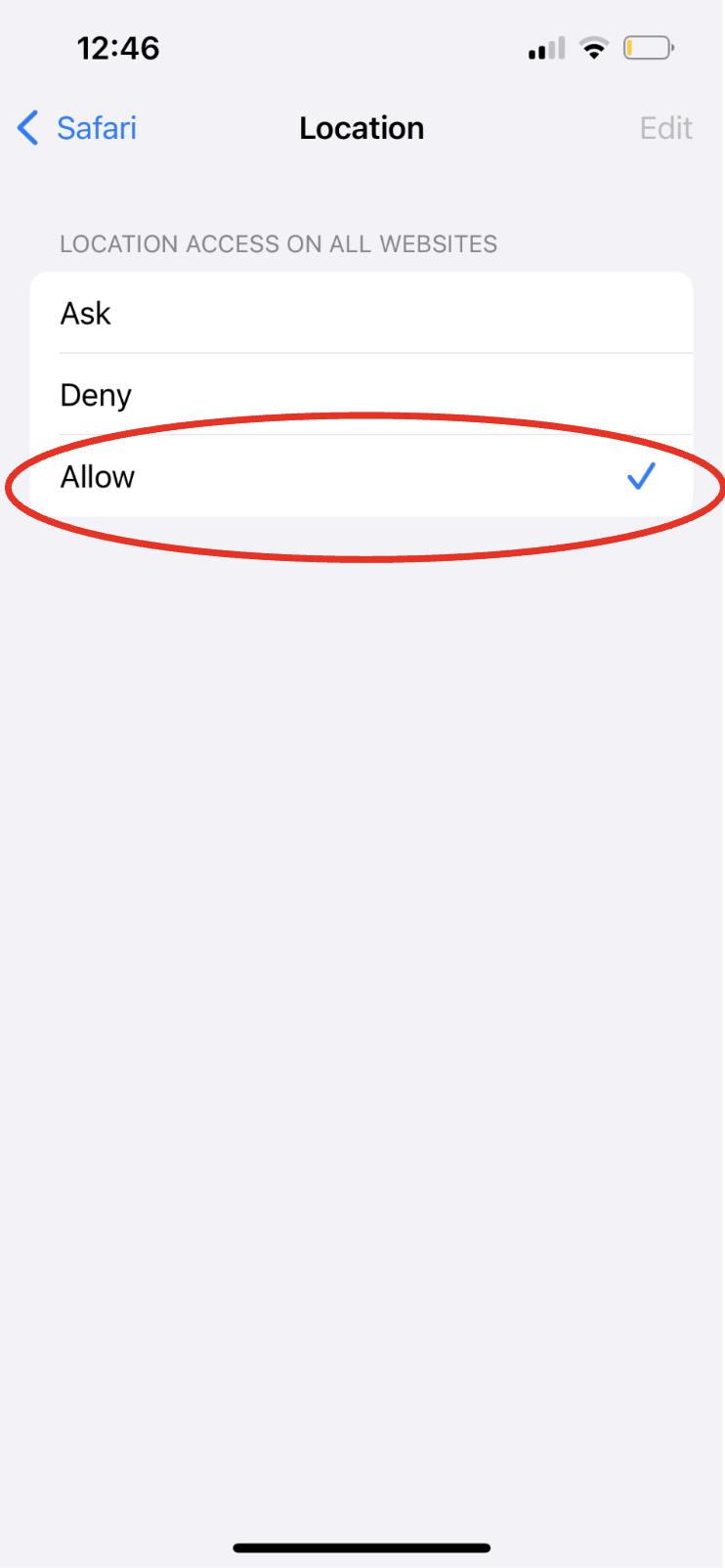
Step 3: Return to the Driftscape Web App
Close settings and return to the Driftscape Web App. GPS Settings should be functioning properly now.
If GPS settings are still not working correctly, see step 4
Step 4: Clear Website Data If Necessary
If GPS is still not functioning properly, you may need to clear your website data. If you’ve previously been to the Driftscape Web App on this device & denied location access manually, this step will be necessary.
Navigate to Settings - Apps - Safari Settings as done in step 1
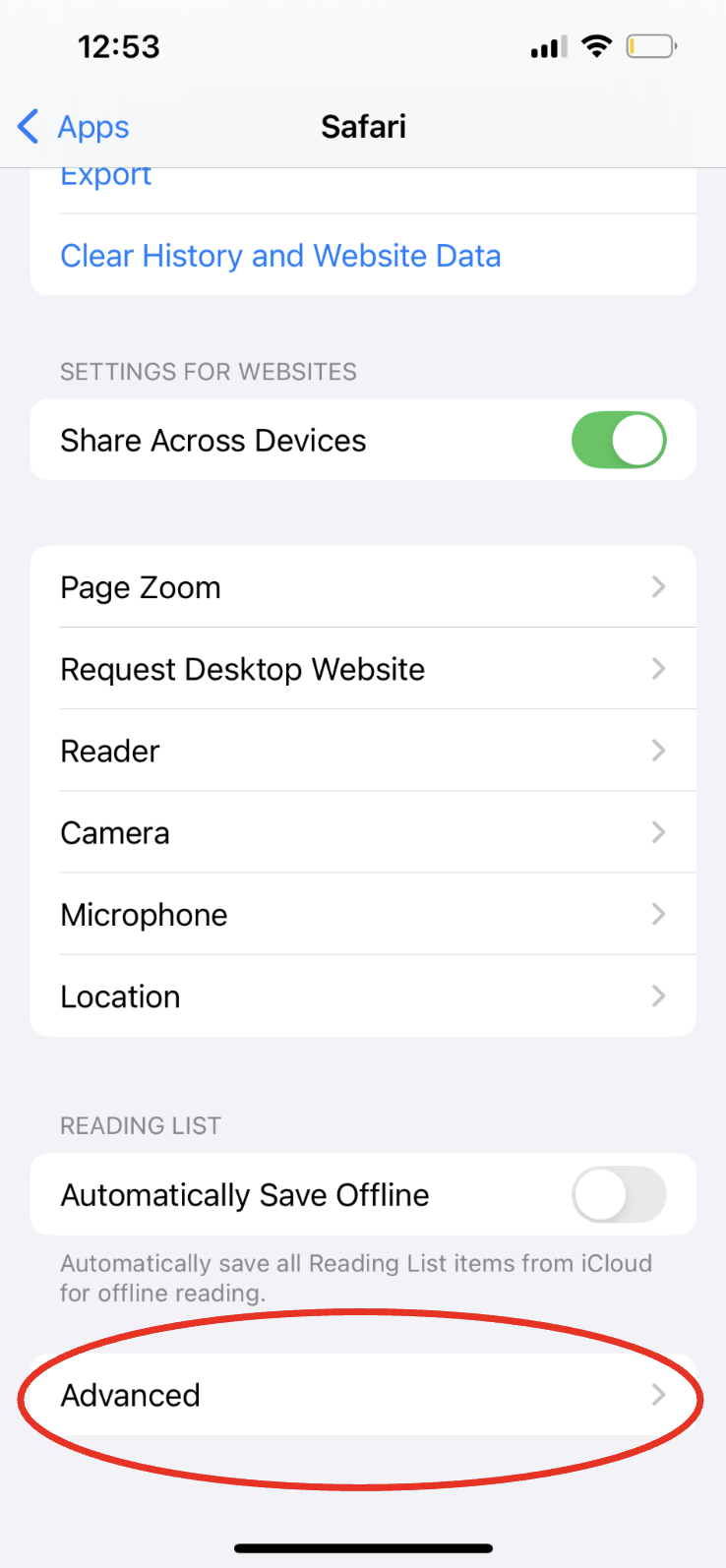
In Safari settings, navigate to “advanced” at the bottom of the page
Select Website Data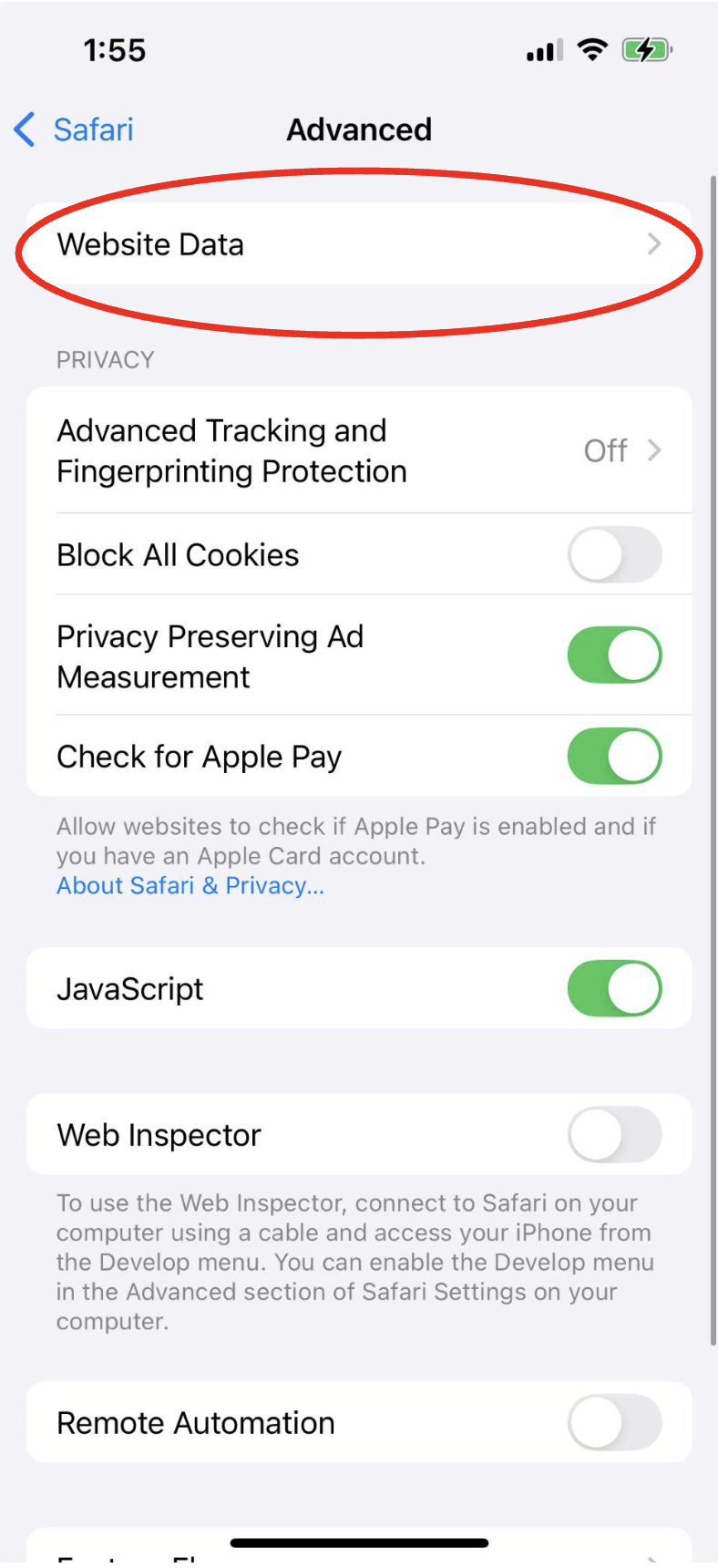
Select “Remove all website data” at the bottom of the page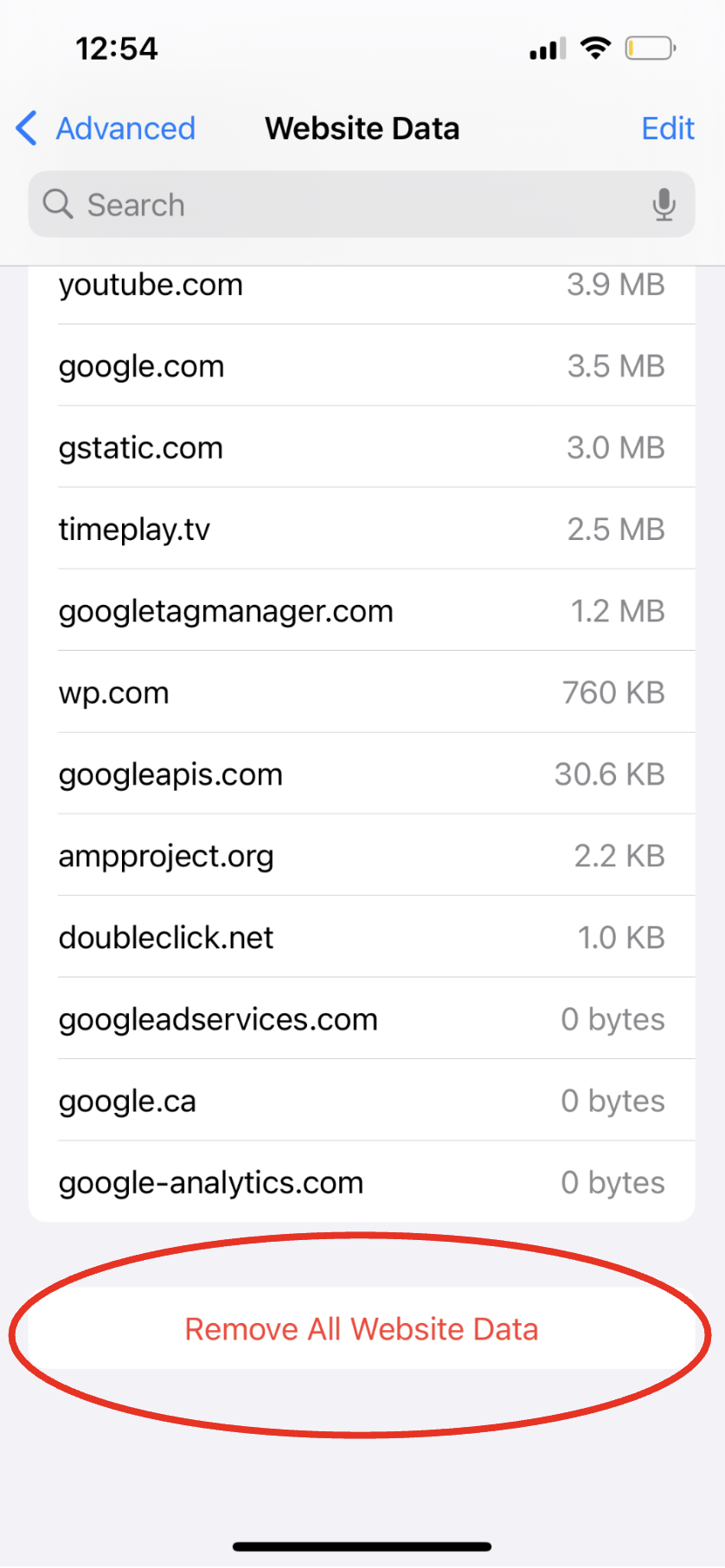
Select “Remove Now” when prompted
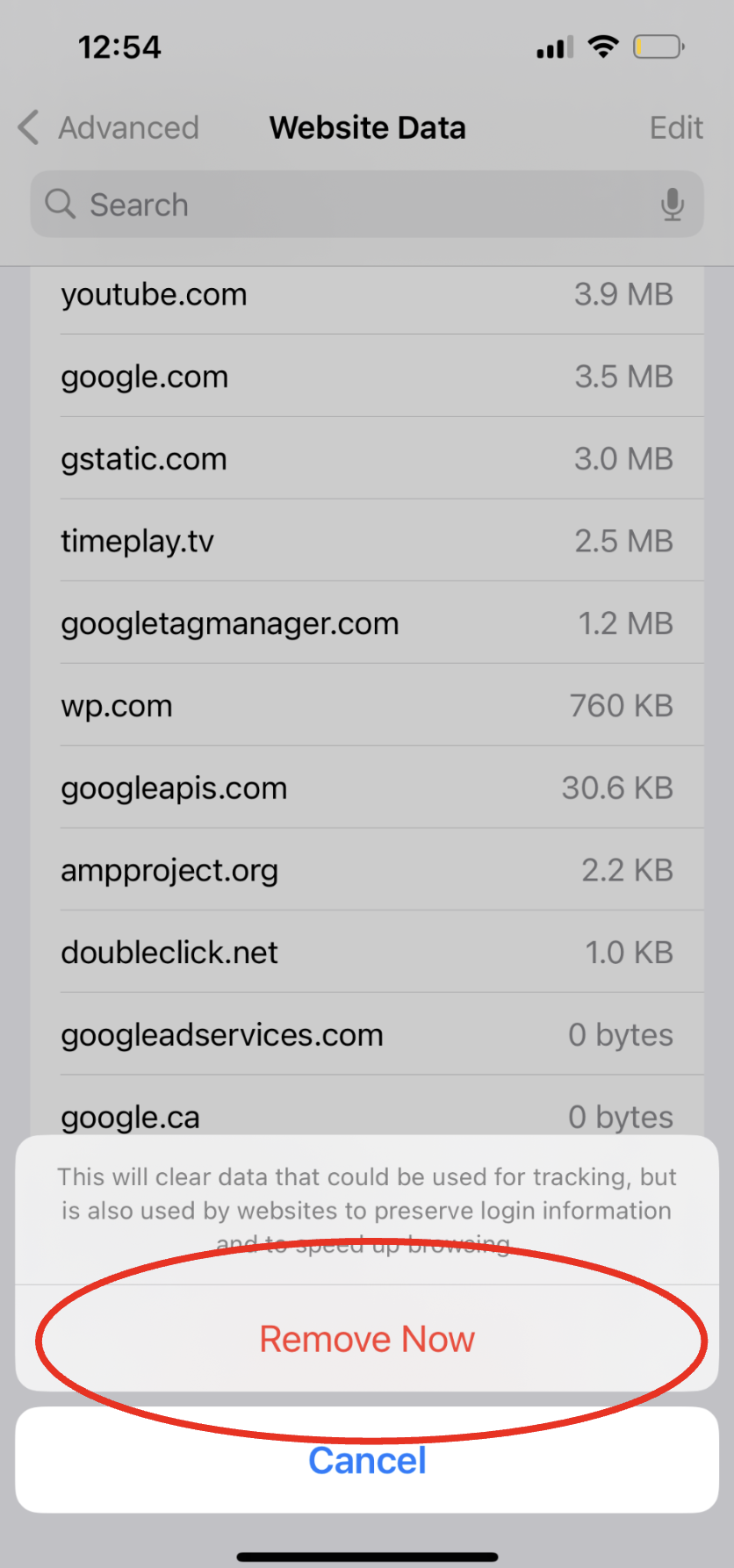
After removing website data, return to the Driftscape Web App and refresh your browser page. GPS functionality will be working after following these steps on IOS.
Android - Google Chrome (Mobile Browser)
Driftscape recommends using the Google Chrome browser (default on most android devices) for mobile app usage. This will walk you through the steps to enable location services on Google Chrome for your android device.
Step 1: Locate Chrome Settings on your Phone
In the application menu, where all your applications are listed, find and open the settings app.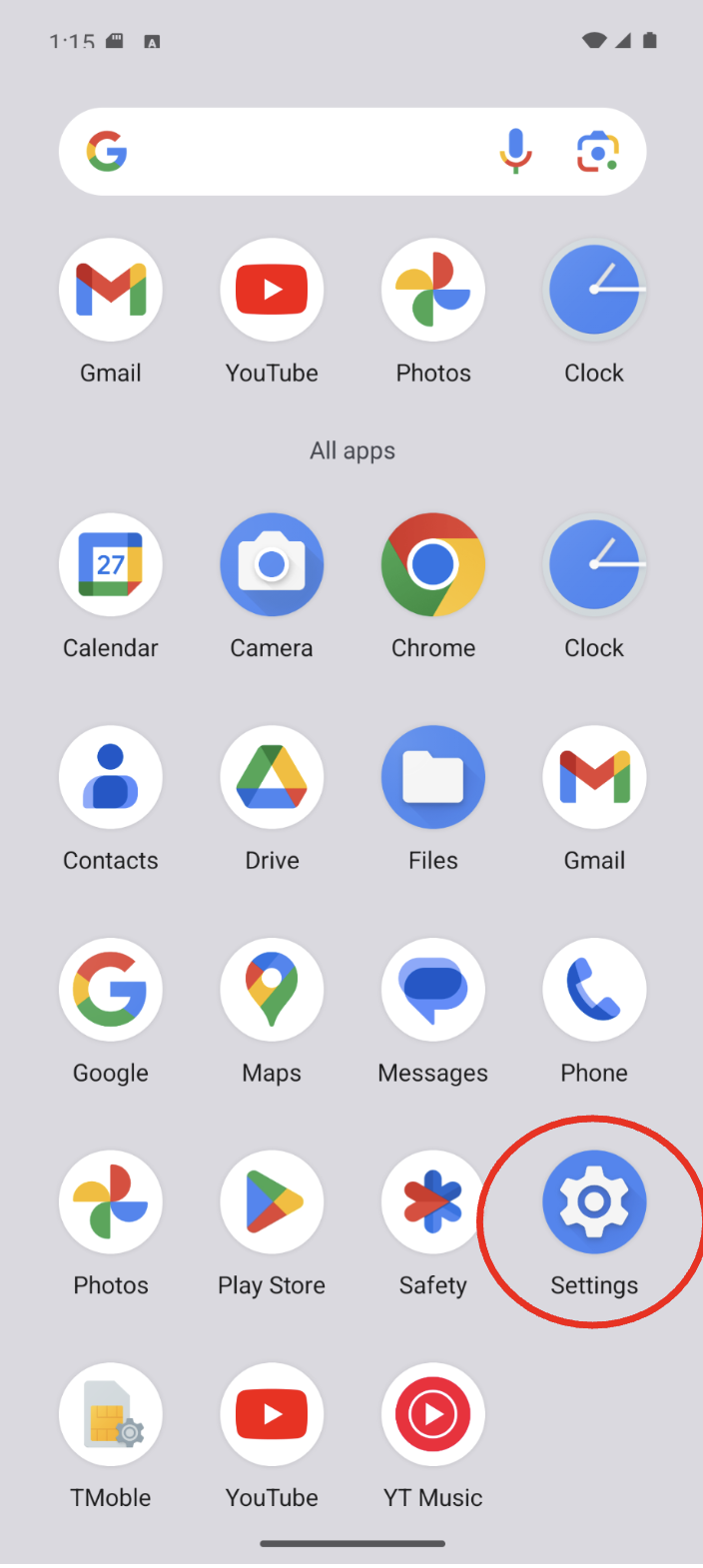
In the settings menu, select “apps”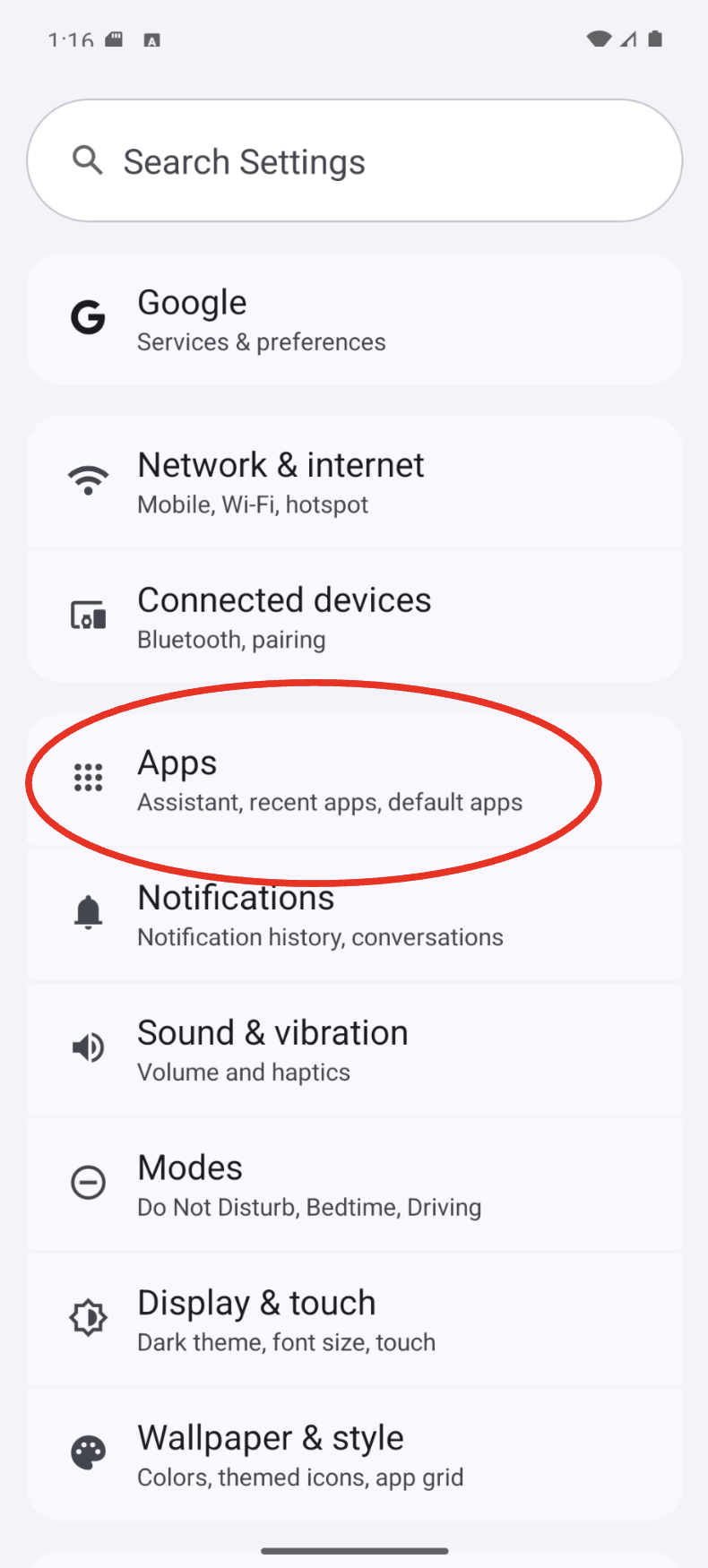
Then select “See All XX Apps”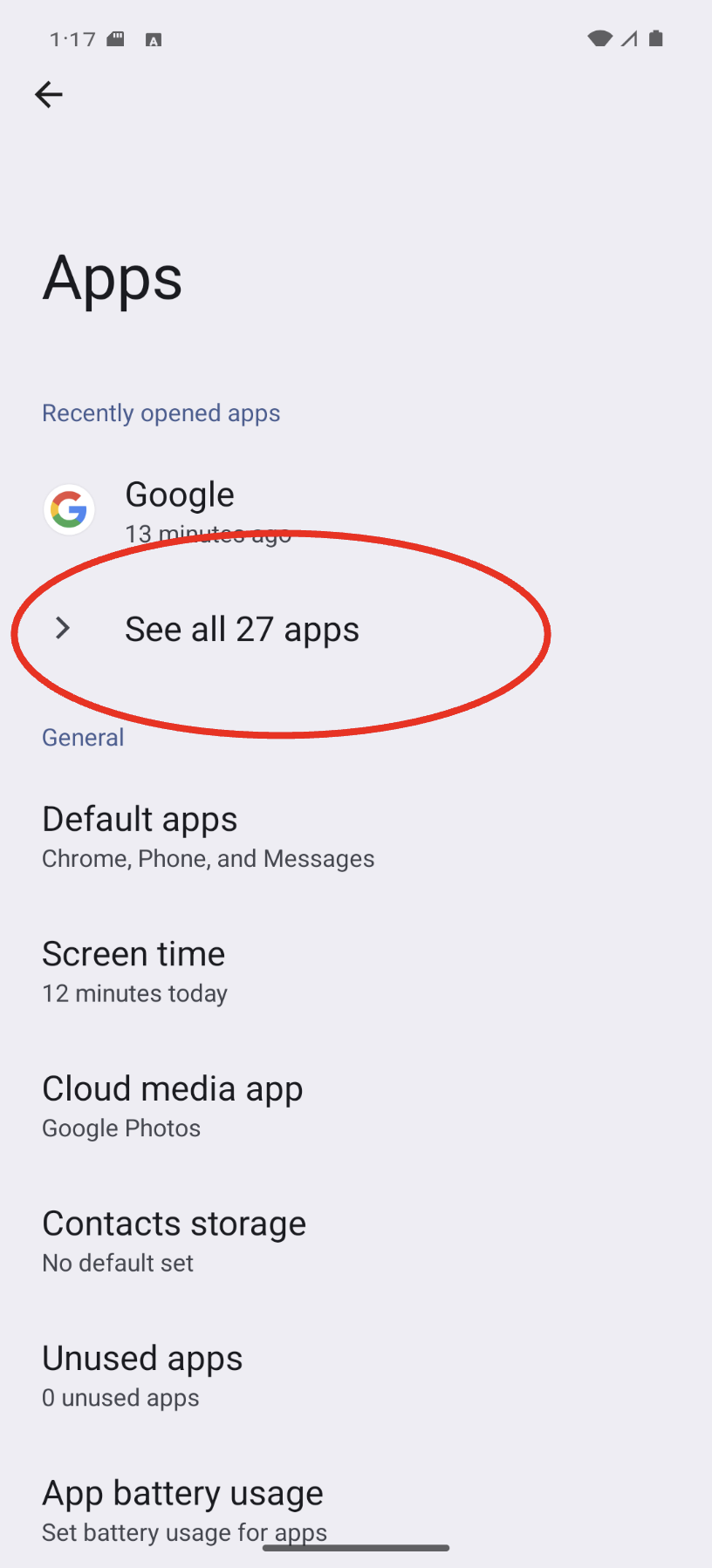
In the list of apps, find and select “ Chrome”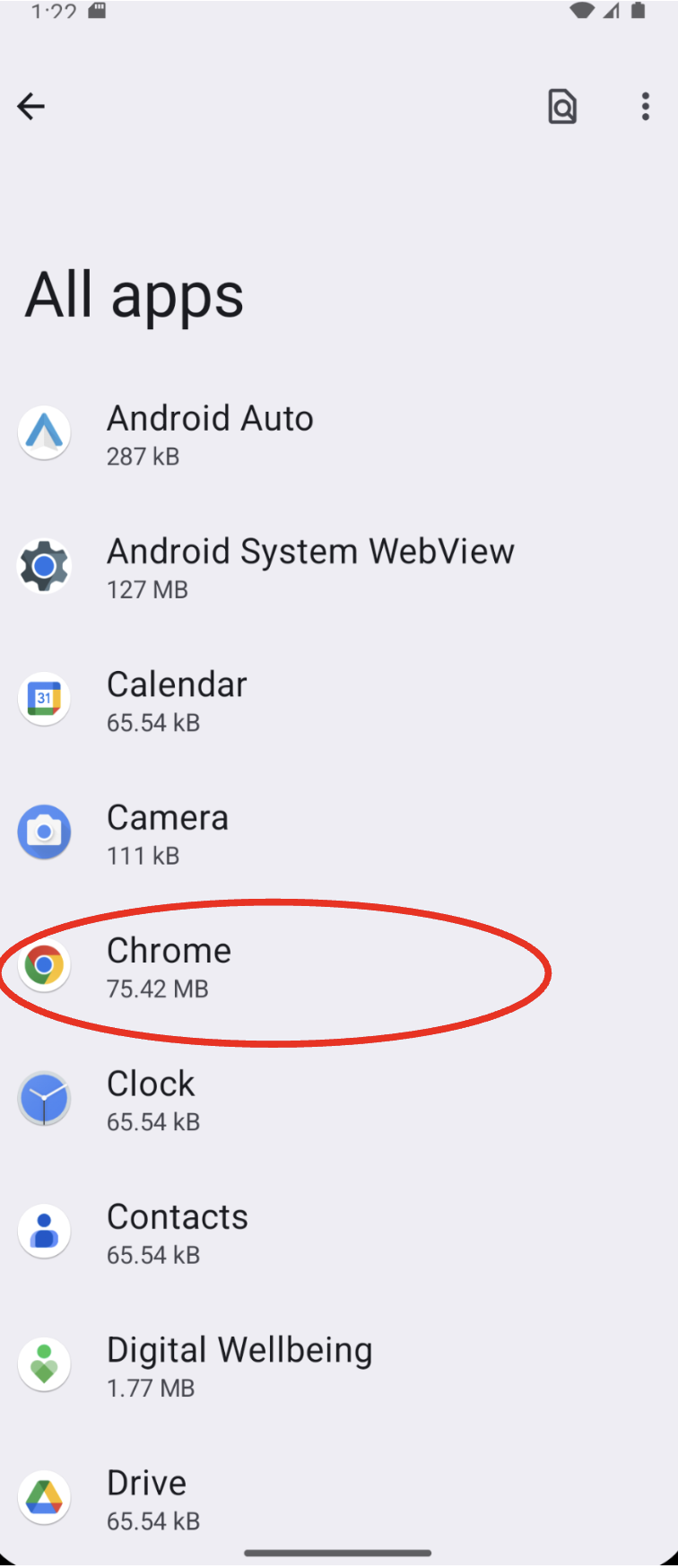
Step 2: Edit Location Permissions for Chrome
In the Chrome menu, select “Permissions”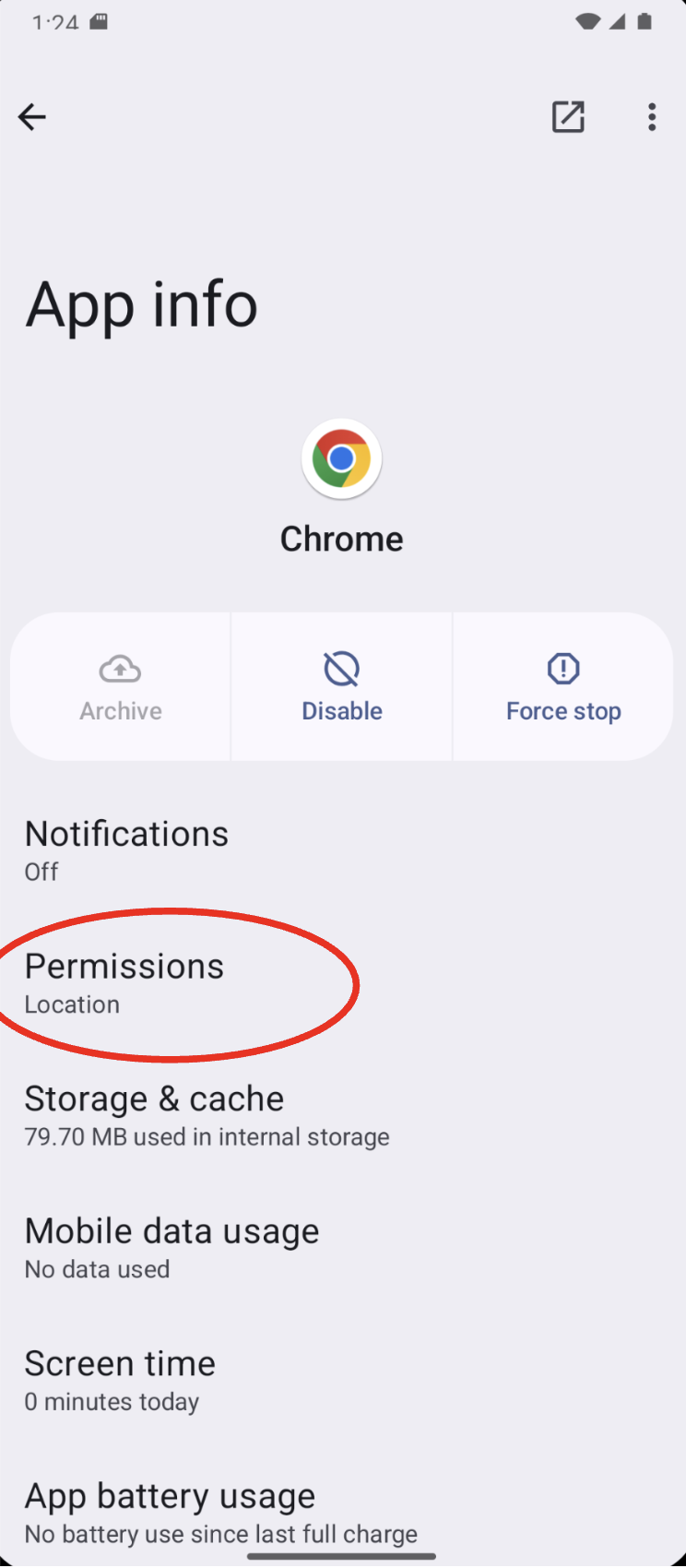
Then find the “Location” button, which will be listed under “not allowed”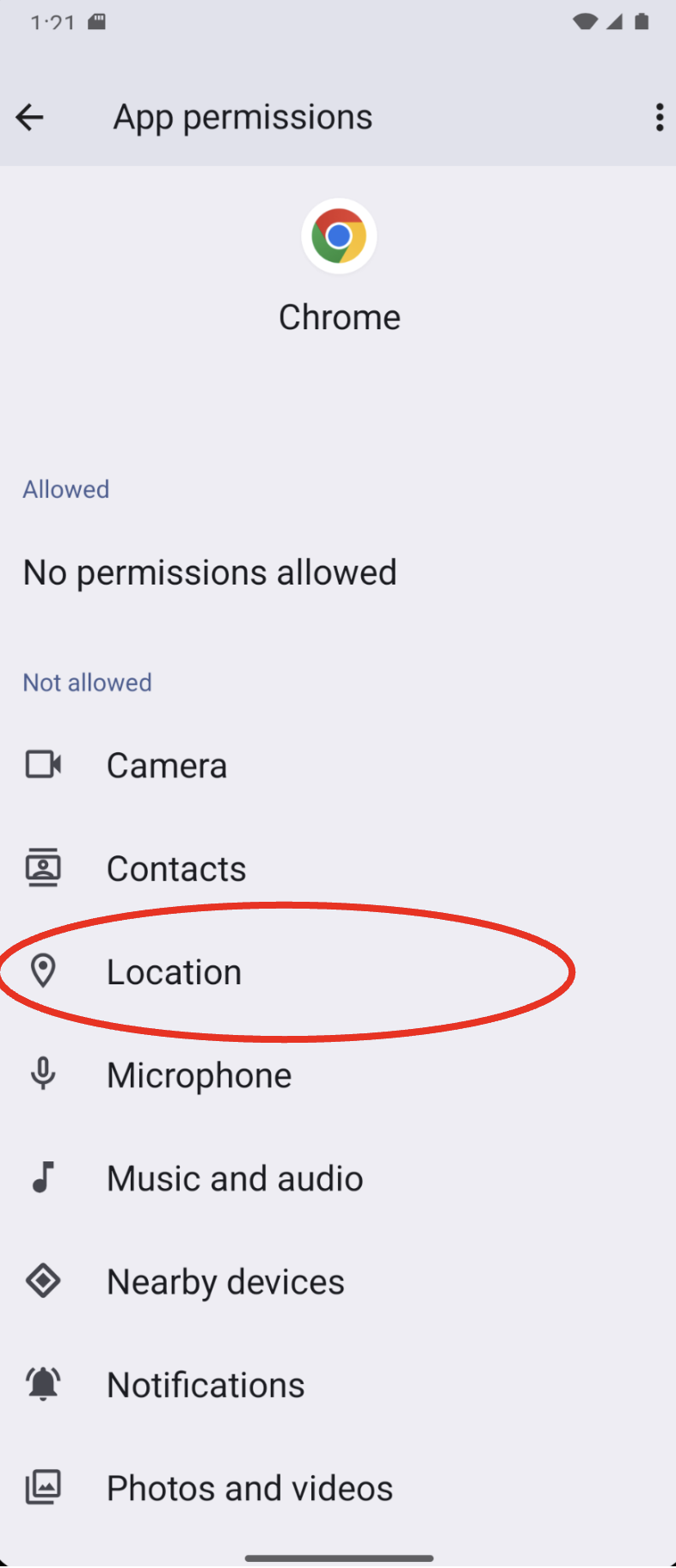
In the pop up menu select “Allow Only When Using the App”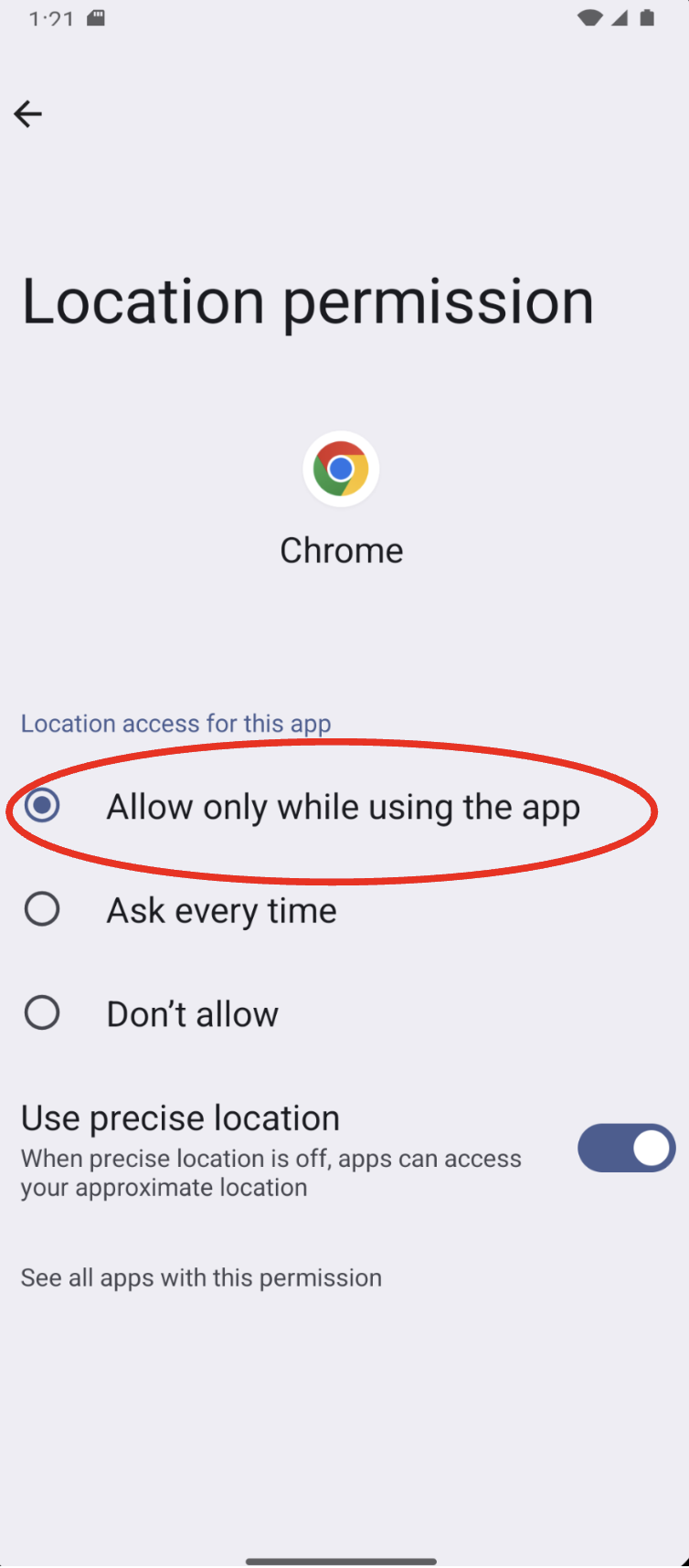
Step 3: Return to the Driftscape Web App
Close settings and return to the Driftscape Web App. GPS Settings should be functioning properly now.
If GPS functionality is still not active, see step 4
Step 4: Clear Chrome Storage & Cache
Certain devices store location settings for individual websites. If this is the case, you need to clear the storage & cache for Chrome.
Follow Step 1 to access Chrome Settings, then select storage and cache inside the Chrome Settings Menu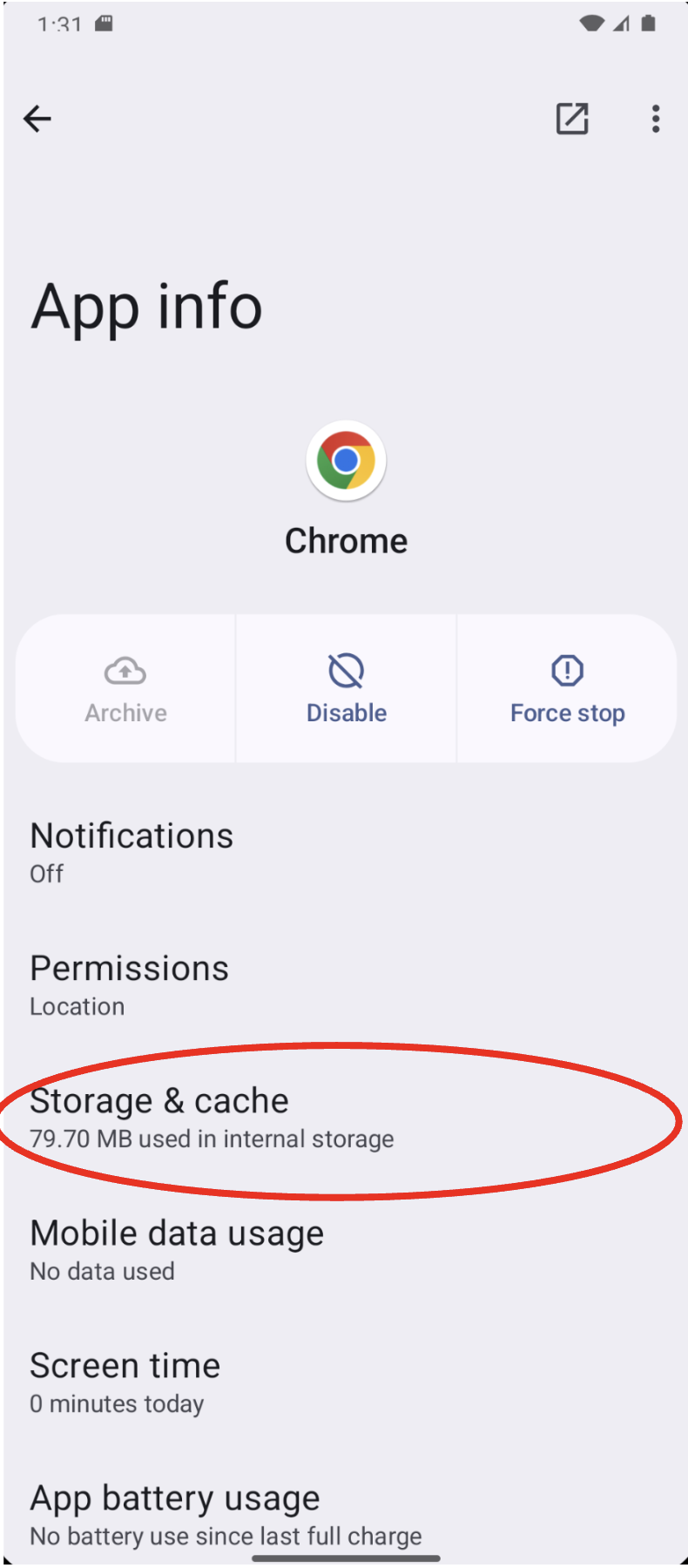
Then select the “clear cache” button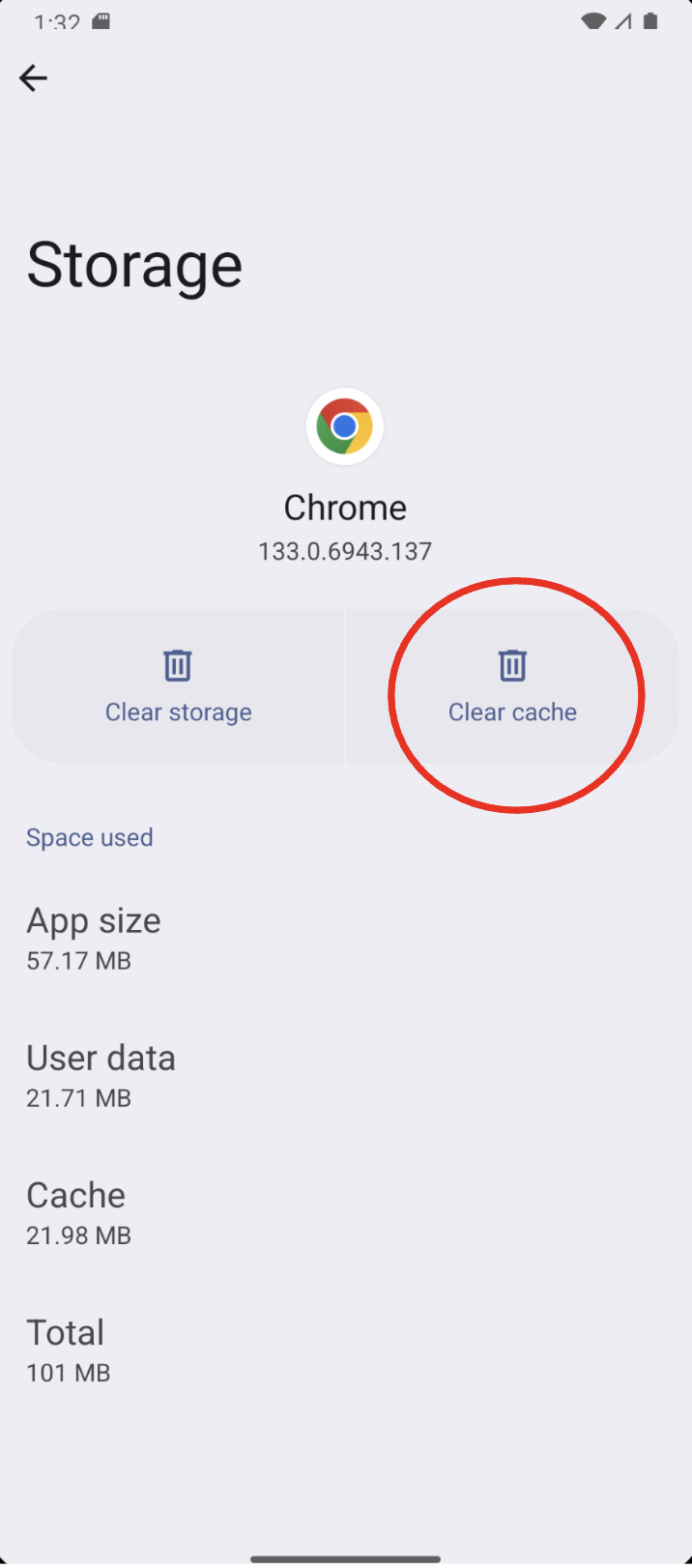
After this, select the “clear storage” button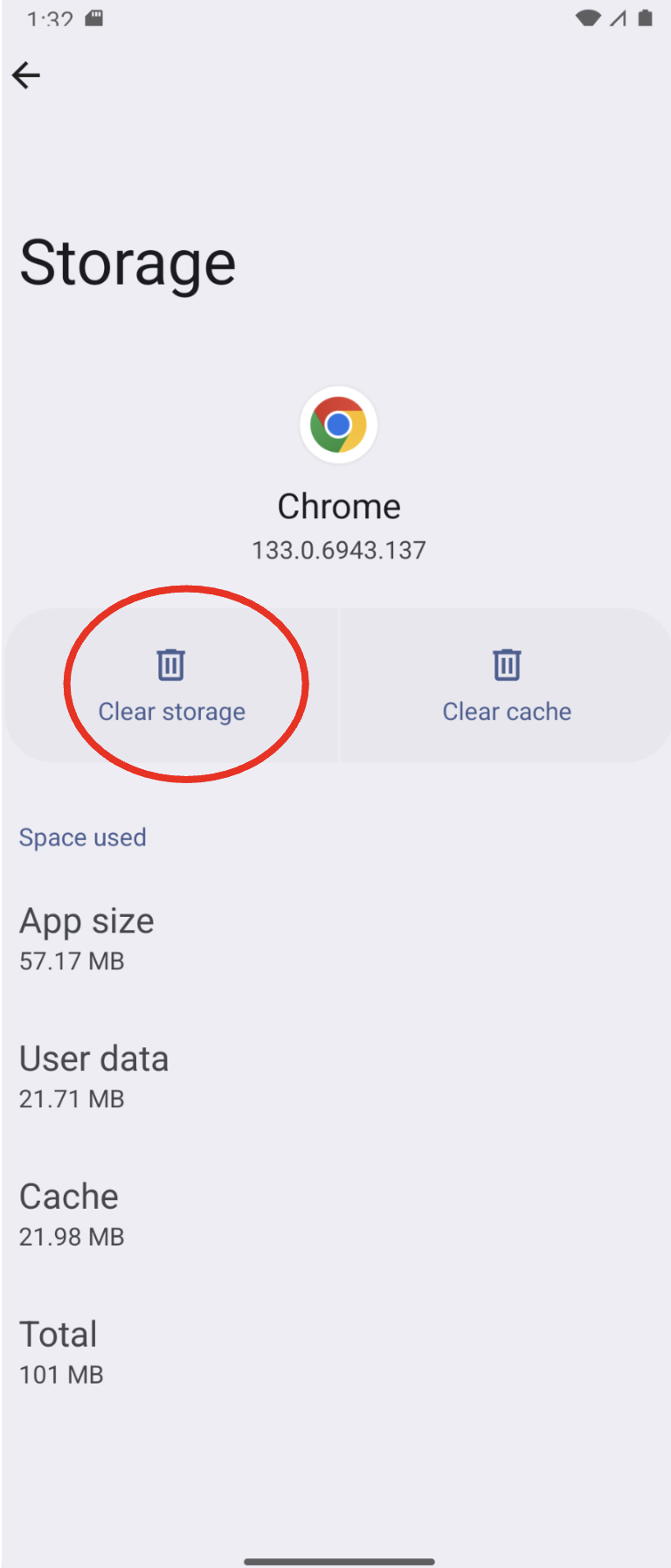
Then select “clear all data” in the menu that follows
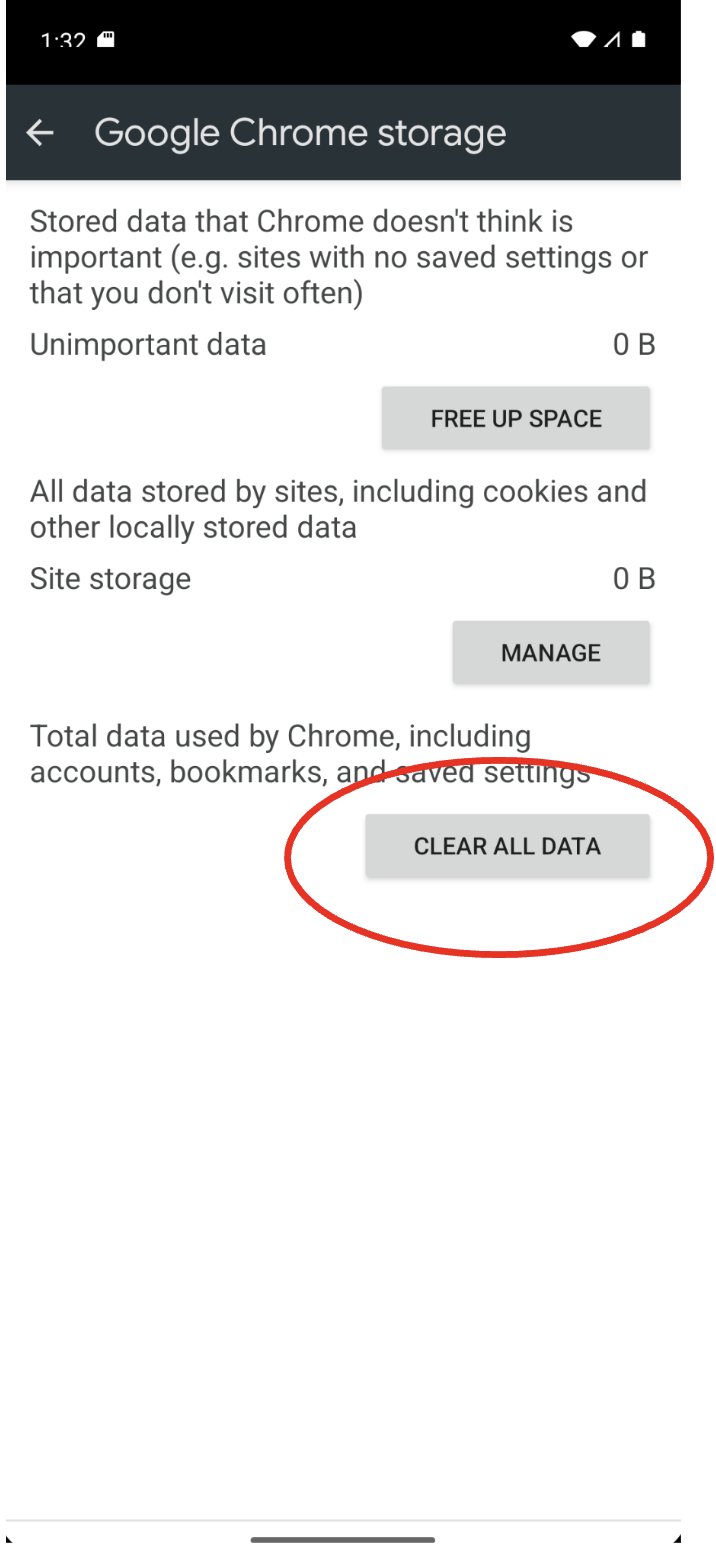
You can now return to the Driftscape web app and your GPS functionality will be working.
Was this article helpful?
That’s Great!
Thank you for your feedback
Sorry! We couldn't be helpful
Thank you for your feedback
Feedback sent
We appreciate your effort and will try to fix the article